Web Accessibility Guide 2026 — WCAG, ARIA, Testing Tools

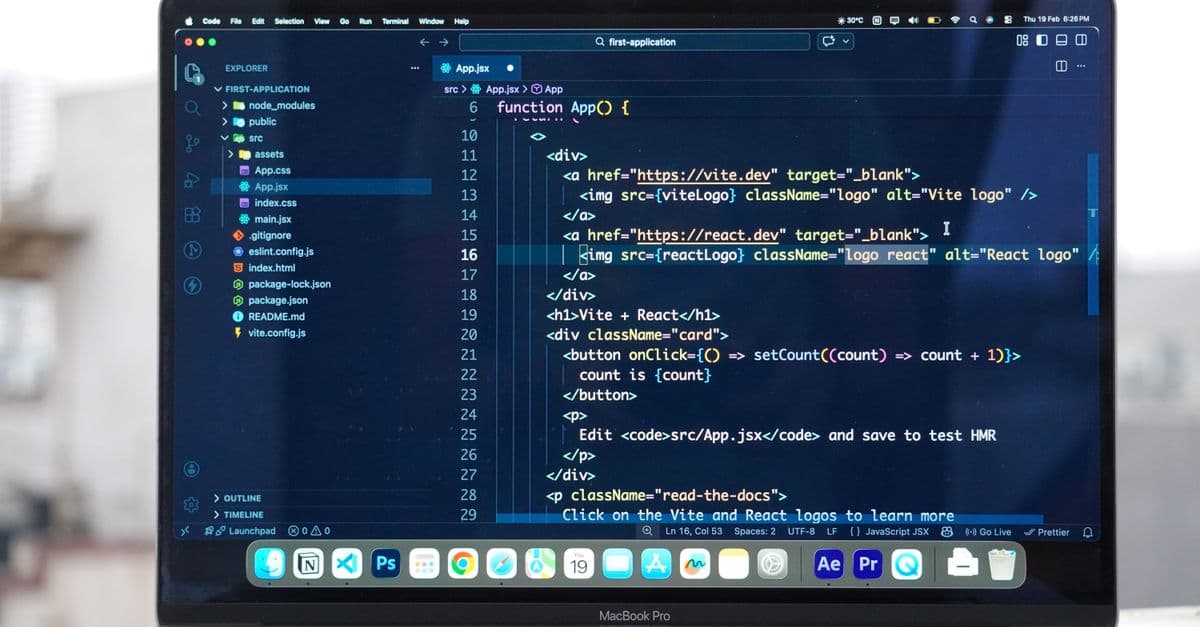
Photo: Jakub Pabis / Pexels
1 in 4 adults have a disability that affects how they use the web. Accessibility (a11y) is no longer optional in 2026 — it's a legal requirement in most countries, a moral baseline, and increasingly a business necessity.
This guide covers practical web accessibility — what WCAG actually requires, how to implement it correctly, and the testing workflow that catches issues before users do.
Why Accessibility Matters
Beyond the moral case:
Legal: US ADA, EU Accessibility Act (2025), UK Equality Act, Canadian AODA — all require web accessibility. Lawsuits are routine; settlements are expensive.
Business: 15-25% of users have disabilities affecting web use. Inaccessible sites lose them all.
SEO: Accessibility improvements (semantic HTML, alt text, proper headings) also help search engines understand content.
Everyone benefits:
- Captions help in noisy environments
- High contrast helps in bright sunlight
- Keyboard navigation helps power users
- Clear language helps non-native speakers
Inclusive design produces better products for everyone.
WCAG: The Standard
WCAG (Web Content Accessibility Guidelines) is the global standard. Currently version 2.2 (2023). Three conformance levels:
- A (Bare minimum)
- AA (Industry standard — legally required in most jurisdictions)
- AAA (Highest, rarely fully achievable)
Target WCAG 2.2 AA unless you have specific reasons for higher.
The Four Principles (POUR)
WCAG organizes requirements into four principles:
1. Perceivable — Users must be able to perceive content (see, hear, feel)
- Provide text alternatives for non-text content
- Captions for video
- Sufficient color contrast
- Resizable text
2. Operable — Users must be able to operate the interface
- All functionality available via keyboard
- Enough time to read content
- Don't trigger seizures (no flashing)
- Help users navigate
3. Understandable — Content and operation must be understandable
- Readable text
- Predictable behavior
- Help users avoid mistakes
4. Robust — Content must work with various assistive technologies
- Valid HTML
- Proper ARIA usage
- Compatible with current and future tools
Semantic HTML (The Foundation)
The single biggest accessibility win: use HTML elements for their semantic purpose.
Wrong
<!-- Generic divs, not accessible -->
<div class="button" onclick="submit()">Submit</div>
<div class="link" onclick="navigate()">Go to home</div>
Right
<!-- Semantic elements -->
<button type="submit">Submit</button>
<a href="/home">Go to home</a>
Why It Matters
Screen readers, keyboard navigation, and other assistive tools rely on semantic meaning. A <button> is automatically:
- Focusable with Tab
- Activatable with Enter/Space
- Announced as a button to screen readers
- Stylable with
:hover,:focus, etc.
A <div> is none of these by default.
Common Elements
<header> <!-- Top of page or section -->
<nav> <!-- Navigation menus -->
<main> <!-- Primary content -->
<article> <!-- Self-contained content -->
<section> <!-- Grouping with shared theme -->
<aside> <!-- Sidebar or related content -->
<footer> <!-- Bottom of page or section -->
<button> <!-- Clickable button -->
<a> <!-- Link to another page/section -->
<h1>-<h6> <!-- Headings (proper hierarchy) -->
<ul>/<ol> <!-- Lists -->
<table> <!-- Tabular data only -->
If you find yourself reaching for <div>, ask: is there a more semantic element?
Headings (Often Done Wrong)
Headings provide structure for screen readers and SEO.
Rules
- One
<h1>per page — usually the page title - Don't skip levels —
<h3>after<h1>skips<h2>. Wrong. - Use for structure, not size — control size with CSS
Right
<h1>Article Title</h1>
 <h2>First Section</h2>
 <h3>Subsection</h3>
 <h3>Another subsection</h3>
 <h2>Second Section</h2>
 <h3>Subsection</h3>
Wrong
<h1>Article Title</h1>
 <h2>First Section</h2>
 <h4>Subsection</h4> <!-- Skipped h3! -->
<h1>Another big text</h1> <!-- Multiple h1s, used for size not structure -->
Images and Alt Text
Every meaningful image needs alt text.
<!-- Good: descriptive alt -->
<img src="chart.png" alt="Sales chart showing 30% growth in Q3 2025">

<!-- Good: empty alt for decorative images -->
<img src="decorative-flourish.svg" alt="">

<!-- Bad: no alt attribute at all -->
<img src="chart.png">

<!-- Bad: redundant or unhelpful -->
<img src="chart.png" alt="image">
<img src="chart.png" alt="chart">
Rules:
- Describe what the image conveys, not what it shows
- Be concise (usually < 125 chars)
- Don't start with "Image of..." (screen readers say that)
- Use
alt=""(empty) for purely decorative images
Color and Contrast
WCAG AA requires:
- 4.5:1 contrast for normal text
- 3:1 for large text (18pt+ or 14pt bold+)
- 3:1 for UI components (buttons, form fields)
Tools to check:
- WebAIM Contrast Checker (webaim.org/resources/contrastchecker)
- Browser DevTools (built-in)
- Stark plugin for Figma
Don't Rely on Color Alone
<!-- Bad: only color shows error -->
<input style="border-color: red;">

<!-- Good: color AND icon AND text -->
<input style="border-color: red;" aria-invalid="true" aria-describedby="error1">
<span id="error1">⚠️ Please enter a valid email</span>
Roughly 8% of men have some form of color blindness. Use color as enhancement, not the only signal.
Forms
Forms are accessibility-critical. Errors here lock users out completely.
Always Label Inputs
<!-- Right: explicit label -->
<label for="email">Email address</label>
<input type="email" id="email" name="email">

<!-- Right: wrapping label -->
<label>
 Email address
 <input type="email" name="email">
</label>

<!-- Wrong: no label, just placeholder -->
<input type="email" placeholder="Email">
Placeholders disappear on focus and have insufficient contrast. They're not labels.
Required Fields
<label for="email">Email address (required)</label>
<input type="email" id="email" required aria-required="true">
Both visually and programmatically indicate required state.
Error Messages
<label for="email">Email</label>
<input
 type="email"
 id="email"
 aria-invalid="true"
 aria-describedby="email-error"
>
<span id="email-error" role="alert">
 Please enter a valid email address.
</span>
aria-describedby connects the error to the input. role="alert" ensures screen readers announce it.
Fieldsets for Groups
<fieldset>
 <legend>Shipping Address</legend>
 <label for="street">Street</label>
 <input id="street" type="text">
 <label for="city">City</label>
 <input id="city" type="text">
</fieldset>
Groups related fields semantically.
ARIA: Use Sparingly
ARIA (Accessible Rich Internet Applications) attributes add accessibility info to HTML. But:
First rule of ARIA: Don't use ARIA. Use semantic HTML instead.
Why? Native HTML elements have built-in accessibility. ARIA adds complexity and can be misused.
When ARIA IS appropriate:
Dynamic Content
<!-- Status messages that should be announced -->
<div role="status" aria-live="polite">
 Form saved successfully
</div>

<!-- Critical alerts -->
<div role="alert">
 Error: payment failed
</div>
Custom Components
When you build something HTML doesn't have:
<!-- Custom tab interface -->
<div role="tablist">
 <button role="tab" aria-selected="true" aria-controls="panel1">
 Tab 1
 </button>
 <button role="tab" aria-selected="false" aria-controls="panel2">
 Tab 2
 </button>
</div>
<div role="tabpanel" id="panel1">Content 1</div>
<div role="tabpanel" id="panel2" hidden>Content 2</div>
Common ARIA Attributes
aria-label="..."— Accessible name (overrides text content)aria-labelledby="other-id"— Use another element as labelaria-describedby="other-id"— Additional descriptionaria-hidden="true"— Hide from screen readersaria-expanded="true|false"— For collapsible elementsaria-controls="other-id"— This controls that element
Bad ARIA Use
<!-- Wrong: ARIA without semantics -->
<div role="button" tabindex="0" onclick="submit()">Submit</div>

<!-- Right: use a button -->
<button type="submit">Submit</button>

<!-- Wrong: redundant ARIA -->
<button role="button" aria-label="Submit">Submit</button>

<!-- Right: just a button -->
<button type="submit">Submit</button>
Keyboard Navigation
All functionality must work with keyboard only. No mouse.
Test This
Try navigating your site:
Tabto move forwardShift+Tabto move backwardEnterto activate links/buttonsSpaceto activate buttons / toggle checkboxesArrow keysfor radio buttons, dropdowns
Common failures:
- Custom dropdowns trap focus
- Modal dialogs don't focus the modal
- Click handlers on
<div>s aren't keyboard-accessible - Missing focus indicators
Focus Indicators
The :focus style shows where keyboard focus is.
/* Don't do this — removes focus indicators */
*:focus { outline: none; }

/* Do this — visible custom focus */
*:focus-visible {
 outline: 2px solid #0066cc;
 outline-offset: 2px;
}
:focus-visible only shows when needed (keyboard navigation), not on every mouse click.
Skip Links
For keyboard users, "skip to main content" links help bypass navigation:
<body>
 <a href="#main" class="skip-link">Skip to main content</a>
 <nav>... lots of nav links...</nav>
 <main id="main">
 Actual content
 </main>
</body>
 position: absolute;
 top: -40px;
 left: 0;
 background: #000;
 color: #fff;
 padding: 8px;
}.skip-link:focus {
 top: 0; /* Appears when focused */
}
Modal Dialogs
A common accessibility mistake. Done right:
<dialog id="myDialog">
 <h2>Modal Title</h2>
 <p>Content here</p>
 <button>Close</button>
</dialog>
Use the native <dialog> element. It handles:
- Focus trap (Tab cycles within modal)
- Escape to close
- Background inert
- Initial focus on first element
If you must build a custom modal, you need to handle all that manually. The native element is much better.
Testing Tools
Automated
- axe DevTools (Chrome/Firefox extension) — finds many issues automatically
- WAVE (wave.webaim.org) — visual feedback overlay
- Lighthouse (in Chrome DevTools) — includes accessibility audit
- Pa11y — CLI tool for CI/CD pipelines
Automated tools catch about 30-40% of issues. They're necessary but not sufficient.
Manual
1. Keyboard test: Navigate entire site with keyboard only. Can you do everything?
2. Screen reader test:
- NVDA (free, Windows)
- VoiceOver (built-in, Mac/iOS)
- TalkBack (built-in, Android)
Spend 30 minutes navigating your site with a screen reader. You'll be surprised.
3. Zoom test: Set browser to 200% zoom. Does everything still work?
4. Reduced motion: Set OS to "reduce motion." Do animations respect this?
@media (prefers-reduced-motion: reduce) {
 * { animation: none !important; transition: none !important; }
}
5. High contrast: Check in Windows High Contrast mode.
React-Specific Patterns
Use semantic HTML
// Wrong
<div onClick={handleClick} className="button">Click me</div>

// Right
<button onClick={handleClick}>Click me</button>
Manage Focus Programmatically
After modals or page changes, set focus appropriately:
const inputRef = useRef(null);

useEffect(() => {
 if (isModalOpen) inputRef.current?.focus();
}, [isModalOpen]);
Use react-aria or Radix UI
Libraries that handle accessibility correctly:
- React Aria (Adobe) — hooks for accessible components
- Radix UI — unstyled accessible primitives
- Headless UI (Tailwind team) — similar
import { Dialog } from '@radix-ui/react-dialog';

<Dialog.Root>
 <Dialog.Trigger>Open</Dialog.Trigger>
 <Dialog.Content>
 <Dialog.Title>Modal</Dialog.Title>
 <Dialog.Close>Close</Dialog.Close>
 </Dialog.Content>
</Dialog.Root>
Handles focus management, ARIA attributes, keyboard interactions correctly.
Common Mistakes
1. Removing focus indicators with outline: none. Use :focus-visible for custom styles.
2. Using div with click handlers. Use buttons or links.
3. Color-only error states. Add icons and text too.
4. Auto-playing videos with sound. Users panic. Always require user action.
5. Carousel that auto-advances. Disruptive. Require user control.
6. Required field not marked. Both visually and with required attribute.
7. Empty link text. <a href="/x">→</a> — what does the arrow mean to screen reader?
8. Modal dialogs that don't trap focus. Use native <dialog> element.
9. Placeholder as label. Disappears on focus, low contrast.
10. Inaccessible third-party widgets. Test before integrating. Some are terrible.
ROI of Accessibility
Benefits beyond legal compliance:
- 15-25% more usable by people with disabilities
- SEO improvement (semantic HTML helps search engines)
- Better usability for everyone (clear contrast, keyboard nav, etc.)
- Brand reputation (visible accessibility shows care)
- Reduced legal risk (lawsuits cost $25K-1M+)
- Better code quality (semantic HTML is cleaner)
A common myth: "Accessibility costs more." Reality: building accessibility in costs 1-3% extra. Retrofitting later costs 10-100x more. Build it right initially.
FAQ
Q: How much accessibility do I really need? A: WCAG 2.2 AA is the standard. In the US, EU, Canada, Australia, UK, and most major markets, this is legally required for public-facing sites.
Q: Is AI helpful for accessibility? A: Mixed. AI tools can suggest alt text, find issues, generate captions. Don't trust them blindly — review outputs. Some AI alt text is generic and unhelpful.
Q: My site is small — do I really need this? A: Yes. Lawsuits target small businesses too. And it's the right thing to do.
Q: How do I justify accessibility budget to management? A: Legal risk (lawsuits), market reach (disabled users = market segment), SEO (semantic HTML = better rankings), better UX for everyone.
Q: What about third-party tools (analytics, chat widgets)? A: Test them. Some have accessibility issues. May need to find alternatives or work with vendors to improve.
Related Articles
- HTML, CSS, JavaScript Fundamentals
- Best Web Development Tools 2026
- Responsive Design & Mobile-First Development
- Next.js vs React 2026
Bottom Line
Web accessibility in 2026 is a legal requirement and a moral baseline. WCAG 2.2 AA compliance is the standard.
The practical approach: semantic HTML first, ARIA sparingly, test with keyboard and screen readers, automate basic checks in CI. Most accessibility issues come from rolling your own when HTML would suffice.
Building accessibility in is cheap. Retrofitting is expensive and often produces worse results. Start now.
Last verified: May 2026
Follow new articles
Add SciHub101 to your feed reader to see new science and technology stories.
About the Author
SciHub101 is an independent science and technology publication founded and edited by Buğra Sözeri, a software engineer and app developer based in Türkiye. AI tools assist with drafting and research. Source documentation in the existing archive is uneven, and articles are being reviewed and corrected. The Editorial Team byline identifies editorial responsibility; it does not certify specialist or independent human review. Where we compare products, anything built by our own team is labelled as such — see the editorial guidelines and About page for how corrections and disclosures work.
Related Articles

Responsive Design & Mobile-First Development Guide 2026
Responsive web design guide 2026: mobile-first CSS, Flexbox, Grid, media queries, touch-friendly UI. Real code examples and checklist for every project.


What Is HTMX? Hypermedia for Modern Web
HTMX explained: how this 14KB library lets you build dynamic web apps with HTML attributes instead of a JavaScript framework, plus how it actually works.

Docker Explained — Containers for Beginners
Learn Docker from scratch: containers vs VMs, Dockerfiles, docker-compose, and how to ship a Node.js app reliably across any environment.

Build Tools Compared 2026 — Vite, Webpack, Turbopack, Bun
Vite, webpack, Turbopack, Bun, Rspack and Rolldown compared for 2026: how each works, where each wins, and what the benchmarks do and do not show.
CSS-in-JS vs Tailwind 2026 — Why Tailwind Took Over
CSS-in-JS vs Tailwind in 2026: runtime cost, Server Components, dark mode, migration, and where each still wins, with sourced benchmarks and docs.