Airtable Automation Tutorial — Build Workflows Fast
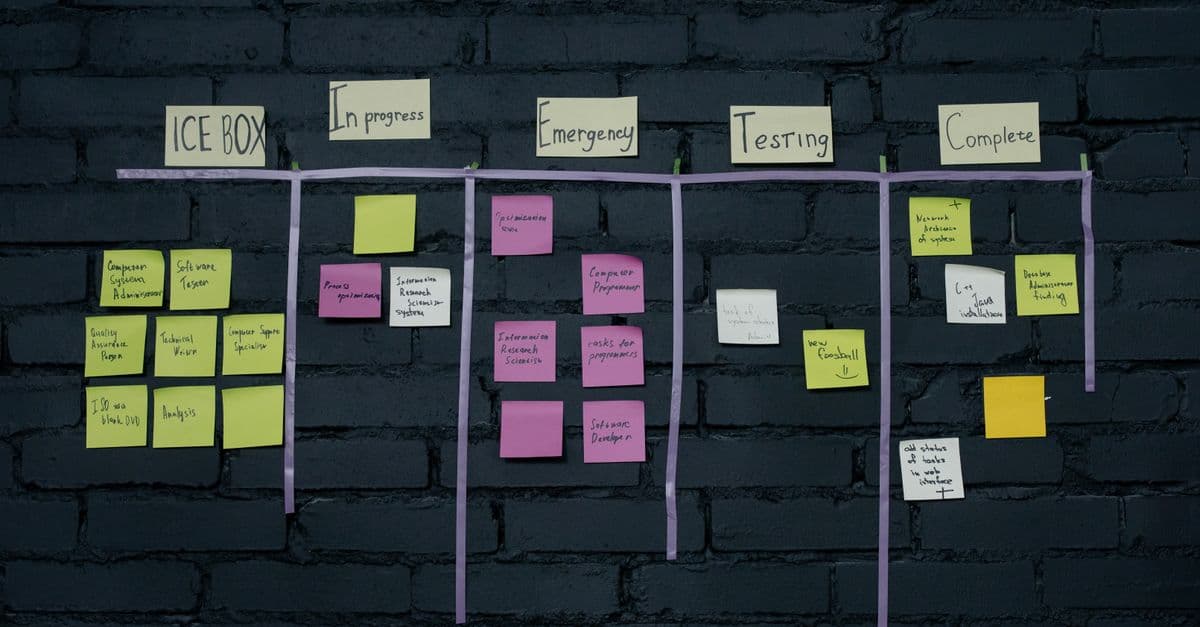
Photo: cottonbro studio / Pexels
An Airtable automation is a small program that waits for something to happen in your base, such as a new record or a changed status, and then performs a chain of actions: send a message, update a record, run a script. You build it with menus instead of code, and it runs on Airtable's servers whether or not anyone is logged in. This tutorial walks through the building blocks, a first working automation, the patterns teams reuse, scripting, webhooks, and the plan limits that decide whether a workflow survives contact with real volume.
How an Airtable automation works
Picture a row of dominoes with a tripwire in front. The tripwire is the trigger: it watches for one specific event. The dominoes are the actions, which fall in order once the trigger fires. Between them you can add conditions that stop or redirect the chain, like a gate that only lets some dominoes through.
Every time the tripwire is hit, Airtable counts one run. That detail matters later, because runs are the currency you spend, and Airtable's documentation states that each trigger invocation counts as a run whether or not the actions succeed.
Triggers you can choose from
According to Airtable's getting started guide for automations, the available triggers include:
| Trigger | What fires it |
|---|---|
| When a record is created | A new row appears in a table |
| When a record is updated | A watched field changes |
| When a record enters a view | A record starts matching a view's filters |
| When a record matches a condition | A record starts meeting conditions you set |
| When a form is submitted | Someone submits an Airtable form |
| At a scheduled time | A clock-based schedule |
| When a webhook is received | An outside system sends an HTTP request |
| When a button is clicked | A user presses a button field |
| Google Workspace and Outlook triggers | Events in connected mail and calendar accounts |
Actions you can chain
The same guide lists actions that include creating, updating, and deleting records, finding records, sending an email, running a script, and posting through integrations such as Slack, Microsoft Teams, Google Workspace, Outlook, Jira, Salesforce, GitHub, and Twilio SMS. The Run a script action is not available on the Free plan.
Two points trip people up early.
- Find records returns a list. If you want to act on every match, you need some way to loop over the results, and a script is the most flexible option. Check the current action list in your base for loop-style actions.
- Emails have sender and recipient rules. On the Free plan, email goes only to collaborators on the base. Team allows 100 unique outside addresses per day, Business allows 1,000, and Enterprise Scale has no limit.
Plans, prices, and the run budget
Before you design anything, check the numbers, because they shape the design. Prices come from Airtable's pricing page and limits from the getting started guide linked above, both read in October 2026.
| Plan | Price per user per month (billed annually) | Runs per month (per workspace) | Unique automations per base | Run history kept |
|---|---|---|---|---|
| Free | $0 | 100 | 75 | 2 weeks |
| Team | $20 | 25,000 | 100 | 6 months |
| Business | $45 | 100,000 | 150 | 1 year |
| Enterprise Scale | Custom | 500,000 | 200 | 3 years |
Two details in that table are easy to miss. The run counter resets on the first day of each month, and the per-base automation limit counts turned-off automations too. Only deleting an automation frees a slot.
A run budget in practice
Suppose a Team workspace has 25,000 runs a month. An automation that fires once for each of 300 new support tickets a day uses about 9,000 runs a month by itself. Add a second automation on every status change, and a workspace can exhaust its budget in the second half of the month without anyone noticing.
The lesson is to design triggers narrowly. A trigger that fires on any field change in a busy table is far more expensive than one that fires when a single status field becomes "Approved."
Build your first automation
The example below sends a Slack message when a new task is created with high priority. It takes about ten minutes and exercises the main ideas.
Step 1: Create the automation
Open your base, choose the Automations tab, and create a new automation. Name it clearly. A name like "Slack alert, new high-priority task" will save you time when you have forty of them.
Step 2: Set the trigger
Choose When a record is created and pick the Tasks table. Then add a condition: Priority is High. Alternatively, build a view called "High priority, new" and use When a record enters a view, which keeps the logic visible in one place that non-builders can inspect.
Step 3: Test the trigger
Airtable requires you to test each trigger and action before you can turn the automation on. A test is a snapshot of the base at the moment you run it, so if the test record changes later, retest. The documentation also notes that records which already match a trigger's conditions when you create the automation will not fire it. They must stop matching and then match again.
That last rule explains a common complaint: "I turned it on and nothing happened for my existing records." This is by design. Create a test record instead of waiting for old ones.
Step 4: Add the action
Add a Slack action to post a message. Insert values from the triggering record by clicking the plus sign in the message field and picking a field. A message might read: "New high-priority task: [Title], assigned to [Assignee], due [Due date]."
Airtable references tables, fields, and views by backend IDs, so renaming a field in the base updates the automation's configuration. Text you typed by hand, however, does not update. If your message says "the Owner field" and you rename the field, the words stay as written.
Step 5: Test the action and turn it on
Run the action test, check the Slack message, and switch the automation on. Then open the run history, which you reach from the automation's page, to confirm the first real run.
Reading run history and fixing failures
Run history is the first place to look when something misbehaves. You can filter runs by succeeded, failed, canceled, created time, or run status, and expand each run to see step details. For script steps, the execution log shows the error message.
Notifications for failed runs go to the last user who turned the automation on. That has a practical consequence: if a former teammate enabled it, the alerts may go to a mailbox nobody reads. When someone leaves, have a current owner toggle the automation off and on, or recreate it.
For a broader view of why failures should land in a place people will see, read why automation needs error queues.
Patterns that real teams reuse
The four patterns below cover most of what teams build.
Pattern 1: Form submission to multi-step workflow
A form submission triggers the automation. The first action creates or updates a record in the main table. Later actions find related records (for example, the team member assigned to that category), send a confirmation email to the submitter, notify the assignee in Slack, and create a follow-up task.
Keep this to the minimum number of steps. Each extra action is another thing that can fail halfway, leaving a record created but nobody notified.
Pattern 2: Status change to notification and logging
Trigger on a status field changing, then branch with conditions.
- If the status is Approved, notify the requester, update the related project record, and write an entry to an audit table.
- If the status is Rejected, notify with the reason and write the entry.
- If the status is Needs Review, message the reviewer.
Logging every transition to an audit table is cheap and solves arguments later. It also gives you data about how long records sit in each stage.
Pattern 3: Scheduled digest
A schedule trigger runs on a set day and time. The automation finds records completed in the last week and records that are overdue, then a script or a formatted message assembles the summary and posts it to email and Slack. The advantage over a manual report is consistency: it arrives whether or not the person who usually builds it is on vacation.
For why scheduled jobs and event-driven ones behave differently, see how cron jobs differ from workflow automation.
Pattern 4: Keeping two bases in step
Teams often keep sales and finance data in separate bases. An automation acts on the base it lives in, so moving data across bases takes either Airtable's sync features, where your plan includes them, or a script that calls the web API. Check your plan's current features before committing to either approach, since availability varies by plan.
If you take the API route, respect the rate limit: Airtable's web API documentation states a limit of 5 requests per second per base, and requests that exceed it receive a 429 status and must wait 30 seconds before later requests succeed.
Scripting inside automations
The Run a script action lets you write JavaScript for anything the point-and-click actions cannot do: loops, calculations, calls to outside services. It runs on Airtable's servers, so you need no separate hosting.
What the environment allows
Airtable's documentation for the action lists these limits, read in October 2026.
| Limit | Value |
|---|---|
| Script memory | 512 MB |
| Timeout | 30 seconds by default; the page says it has temporarily raised it to 120 seconds while it tests a longer limit |
| Airtable scripting API calls | 12 second timeout |
| Fetch requests | 50 per run, each with a 30 second timeout |
selectRecords queries |
30 per run |
| Writes | Up to 15 per second, with each write changing up to 50 records |
| Output size | 6 MB |
Because the timeout is described as something Airtable may change, build for the 30-second figure and treat anything longer as a bonus.
Inputs reach the script through input.config(), which returns an object whose keys you define in the action's input section by adding properties. Values can reference earlier steps. Sensitive values can be stored as secrets and read with input.secret. Results flow to later actions through output.set().
Example 1: Calculate customer lifetime value
This script totals paid orders for one customer and writes the result back. The customer's record ID arrives as an input called customerId.
const { customerId } = input.config();

const customers = base.getTable("Customers");
const orders = base.getTable("Orders");

// Read only the fields we need, once, instead of per record.
const query = await orders.selectRecordsAsync({ fields: ["Total", "Status", "Customer"] });

let totalValue = 0;
let paidOrders = 0;

for (const record of query.records) {
  const linked = record.getCellValue("Customer");
  const isThisCustomer = linked && linked.some((c) => c.id === customerId);
  if (isThisCustomer && record.getCellValueAsString("Status") === "Paid") {
    totalValue += record.getCellValue("Total") || 0;
    paidOrders += 1;
  }
}

await customers.updateRecordAsync(customerId, {
  "Lifetime Value": totalValue,
  "Total Orders": paidOrders,
});

output.set("lifetimeValue", totalValue);
output.set("orderCount", paidOrders);
Two choices in that script are deliberate. It reads the Orders table once rather than once per customer, which respects the cap of 30 selectRecords queries per run. It also uses getCellValueAsString for the single-select status field, because a single select returns an object, not text, and comparing it to a string directly fails silently.
For very large tables, scanning every order inside one script gets slow and can hit the timeout. In that case, a rollup field in Airtable can do the same sum with no script at all, and a native rollup is always cheaper to maintain.
Example 2: Fetch outside data safely
const { customerId, externalId } = input.config();
const apiKey = input.secret("apiKey");

try {
  const response = await fetch(
    "https://api.example.com/customers/" + encodeURIComponent(externalId),
    { headers: { Authorization: "Bearer " + apiKey } }
  );

  if (!response.ok) {
    throw new Error("Lookup failed with status " + response.status);
  }

  const data = await response.json();

  await base.getTable("Customers").updateRecordAsync(customerId, {
    "External Status": data.status,
  });
} catch (error) {
  // Surface the problem in the run's execution log and stop the run.
  console.error(String(error));
  throw error;
}
The pattern to copy is the structure, not the endpoint. The API key comes from input.secret rather than from a plain input, which keeps it out of logs. The response.ok check catches error statuses that fetch does not treat as exceptions. Rethrowing lets the run show as failed, so the failed-run notification fires.
Updating many records without hitting limits
If a script updates records in a loop one at a time, it will run into the write cap. Airtable's page says a single write can change up to 50 records, so group updates in batches of 50:
const updates = records.map((r) => ({ id: r.id, fields: { Status: "Reviewed" } }));
for (let i = 0; i < updates.length; i += 50) {
  await table.updateRecordsAsync(updates.slice(i, i + 50));
}
Webhooks: connecting Airtable to everything else
An incoming webhook is a unique web address that, when it receives an HTTP request, starts the automation. Airtable generates the address when you choose When a webhook is received. Anything that can send an HTTP POST can use it: a payment processor, a form service, a custom app.
The usual flow is: parse what arrived, find or create the matching record, add a row for the event, and notify the right person. For an overview of why these hand-offs fail quietly and how to watch them, see why webhooks fail silently and how to monitor them. If the idea of webhooks is new, API basics for no-code automation is a short primer, and how event-driven automation works explains the model behind triggers in general.
Idempotency matters more than you think
Senders sometimes deliver the same webhook twice, especially when they do not get a quick reply. If your automation creates a record each time, you will get duplicates. The fix is to store a unique event ID on the record and have the first action search for it before creating anything. The reasoning is covered in how idempotency keys make automation safe.
Airtable native versus Zapier, Make, and n8n
Native automations are the fastest to set up and need nothing outside Airtable. External tools win when you need many app connections or complex branching.
| Situation | Better choice |
|---|---|
| Everything happens inside one base, plus Slack or email | Native automation |
| You need an app Airtable does not connect to | Zapier, Make, or n8n |
| Many branches and data transformations across apps | Make or n8n |
| You are near your monthly run limit | Move heavy, high-volume work to an external tool or batch it in scripts |
| You need self-hosting for data control | n8n |
A common hybrid is for an Airtable automation to send a webhook to the external tool, which does the multi-app work and calls back to update the record. Our tutorials cover both sides: the Make.com automation tutorial for visual multi-step scenarios, and the n8n workflow guide for the self-hosted route. For a no-code overview of connecting tools, see how to integrate tools without coding.
Common mistakes and how to avoid them
Trigger loops. If automation A updates records that trigger automation B, and B updates records that trigger A, you get a loop that burns your run budget. Draw the chain on paper before you build, and use a flag field such as "Processed by automation" to stop a second pass.
Testing only the happy path. Test with no matching records, several matching records, empty required fields, and special characters in text fields.
Hard-coding values. Put changeable values in inputs or a settings table so you do not edit scripts for routine changes.
Silent script failures. Wrap calls in try/catch, but rethrow so the run is marked failed. A swallowed error looks like success.
Ignoring rate limits. When you call the web API in a loop, batch your calls and back off when you receive a 429 response. Airtable's own documentation recommends backing off before retrying.
Building a database inside a spreadsheet habit. If every automation exists to repair data that people keep typing wrongly, the real fix is validation: use single selects, linked records, and required fields. See why spreadsheet automations break at scale for how this goes wrong.
Performance and cost tips
- Trigger on a narrow event. A status change costs fewer runs than any-field-changed.
- Use views to define "ready". A view called "Ready to send" makes the logic inspectable and lets the trigger fire only when a record enters it.
- Prefer native actions for simple jobs. They are easier to read than equivalent scripts, and the next builder will thank you.
- Batch writes. Group record updates in sets of 50 inside scripts.
- Count your runs monthly. Check usage against your plan's cap before it becomes an outage.
A worked example: a marketing campaign tracker
A marketing team uses a base with four tables: Campaigns, Channels, Performance, and Tasks. Three automations run it.
- Campaign setup. When a campaign is created, the automation creates standard tasks (kickoff, design, launch, retrospective), creates a channel entry for each enabled channel, and posts to Slack.
- Daily performance sync. A schedule trigger runs a script that pulls yesterday's numbers from the team's analytics tools via their APIs, writes them to the Performance table, and flags campaigns below a threshold. Because the script makes several outside calls, it counts them against the 50-fetch limit and uses secrets for keys.
- Weekly report. On Monday mornings, the automation finds active campaigns, formats a summary, emails the lead, and posts highlights to a team channel.
The team sizes its run budget at the start. With these hypothetical numbers, the daily sync costs about 30 runs a month, the weekly report about four or five, and campaign setup depends on how many campaigns are launched. Even adding a busy campaign pipeline, the whole setup stays far inside a Team plan's 25,000 runs. The saving comes from time: the weekly report, once built by hand, now builds itself, and nobody has to remember to run it.
When to move beyond Airtable
Airtable is a good home for workflows that people also need to see and edit as tables. It is a weaker fit when volume is high or when an application needs a conventional database.
Signs you have outgrown it:
- Your runs per month approach the plan limit even after narrowing triggers.
- Scripts regularly hit the timeout or the fetch cap.
- You need transactional guarantees, such as "either all of these writes happen or none."
- Outside traffic against the web API is constrained by the 5-requests-per-second-per-base limit.
For serious application backends, a standard relational database is the usual answer, and understanding why database indexes speed up queries shows what that kind of system provides that a spreadsheet-style tool does not. Moving does not have to be all at once. Many teams keep Airtable as the human-facing layer and let a database handle the heavy work.
Frequently asked questions
Q: Is Airtable automation free? A: The Free plan includes 100 automation runs per month, and the Run a script action is not available on it. Team gives 25,000 runs a month at $20 per user per month billed annually, and Business gives 100,000 at $45. Each trigger invocation counts as a run, successful or not.
Q: Why did my automation not fire for existing records? A: Records that already match the trigger conditions when you create the automation do not fire it. They must stop matching and then match again. Test with a new record or by toggling the field.
Q: How long can an Airtable script run? A: Airtable's documentation gives 30 seconds as the baseline and says it has temporarily raised the timeout to 120 seconds while testing a longer limit. Plan for 30 seconds. Individual fetch calls have their own 30-second timeout.
Q: How do I keep API keys out of my scripts?
A: Store them as secrets in the action's input configuration and read them with input.secret. Avoid pasting keys directly in the code or in plain text inputs.
Q: What is the difference between automations, interfaces, and extensions? A: Automations run in the background in response to triggers. Interfaces are custom views built for end users, and extensions add tools inside a base. Only automations act without a person opening something.
Q: Can I use Airtable as the database for a real application? A: For small internal tools, often yes. For customer-facing apps with heavy traffic, the 5-requests-per-second-per-base web API limit and the plan-based run caps become constraints, and a conventional database is safer.
Q: Who gets the failure email when a run fails? A: The last user who turned the automation on. Make sure that person still works on the base, or re-enable the automation from a current owner's account.
Sources
- Getting started with Airtable automations: triggers, actions, testing rules, run history, plan run limits
- Airtable: Run a script action: script memory, timeout, fetch and write limits, inputs and outputs
- Airtable pricing: Team and Business per-seat prices
- Airtable web API rate limits: 5 requests per second per base, 429 handling
- Airtable scripting: input.config(): how inputs are read in automation scripts
Plans and limits change. Figures above were read from these pages in October 2026, so confirm them before you design around a specific number.
Related Articles
- Best Automation Tools for 2026
- Workflow Automation Examples
- Slack to Notion Automation
- n8n Self-Hosting Guide
Bottom line
Airtable automations turn a flexible database into a workflow engine. The decisions that separate workflows that last from ones that fail quietly are mostly unglamorous: narrow triggers, a run budget, scripts that fail loudly, secrets kept out of code, and a person who actually receives the alerts. Start with one automation that replaces one manual job, watch it in run history for a few weeks, and add the next one only when the first is boring.
Last verified: October 2026
Follow new articles
Add SciHub101 to your feed reader to see new science and technology stories.
About the Author
SciHub101 is an independent science and technology publication founded and edited by Buğra Sözeri, a software engineer and app developer based in Türkiye. AI tools assist with drafting and research. Source documentation in the existing archive is uneven, and articles are being reviewed and corrected. The Editorial Team byline identifies editorial responsibility; it does not certify specialist or independent human review. Where we compare products, anything built by our own team is labelled as such — see the editorial guidelines and About page for how corrections and disclosures work.
Related Articles
How to Integrate Tools Without Coding — No-Code Guide
Connect your favorite apps: Gmail, Slack, Airtable, Salesforce. No API knowledge required. Zapier, Make, and native integrations compared.
AI Automation with ChatGPT and Claude — Workflows in 2026
How to build reliable AI automations with the OpenAI API, Zapier and n8n: documented workflow patterns, structured outputs, batch jobs, data policies and safeguards.

Make.com Automation Tutorial — Complex Workflows Guide
Make tutorial: build workflows with conditions, loops, error handling. More powerful than Zapier, cheaper, better for complex logic.
Zapier Step-by-Step Guide — First Automation in 15 Min
Zapier tutorial for beginners: build a Gmail to Slack alert on the free plan, learn tasks, filters, delays, and limits, and know when to pick another tool.

How to Automate Repetitive Tasks Without Code 2026
How to automate repetitive tasks without code: pick the right tasks, estimate ROI with real arithmetic, build a first Zap, and keep it from breaking.

What Is No-Code Automation? A Beginner's Guide
No-code automation explained: how triggers, actions, and filters work, what Zapier, Make, n8n, and IFTTT cost, and which tasks to automate first.