Workflow Automation Examples — Real-World Use Cases

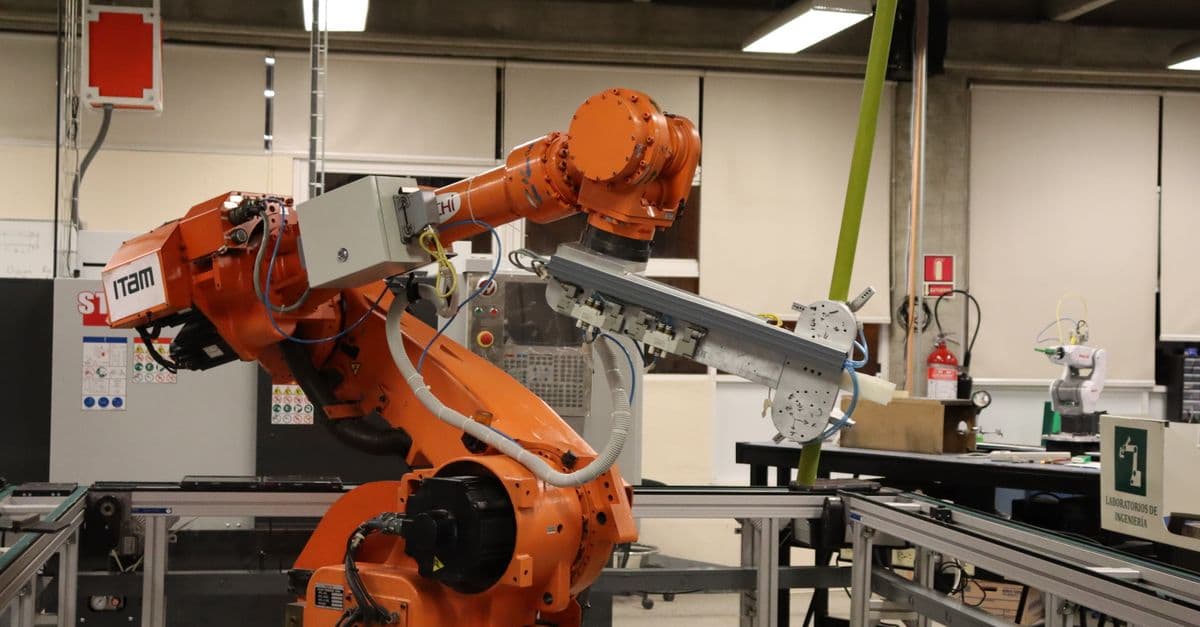
Photo: Thirdman / Pexels
Every workflow automation, whatever tool runs it, has the same shape: something happens (the trigger), the workflow checks whether it should continue (the conditions), and then it does one or more things (the actions). Shopify's own documentation for its Flow tool describes workflows in exactly those three parts, and Zapier, Make, n8n, Slack Workflow Builder and GitHub Actions all follow the same pattern under different names.
This page walks through twelve concrete workflows that businesses commonly build. For each one we describe the trigger, the steps, which platform features it relies on, and, most importantly, what tends to go wrong. Where a step depends on a specific platform behaviour, we link to the vendor's documentation so you can check the current details yourself. We do not quote prices or promise a number of hours saved: both depend entirely on your volume, your tools and your plan, and published estimates are rarely measured.
If you have not picked a platform yet, start with our comparison of the best automation tools for 2026, then come back here for patterns.
How to Read These Examples
Each example uses the same structure:
- Trigger: the event that starts the workflow
- Steps: what happens, in order
- Platform features used: the specific building blocks, with links to documentation where it matters
- Failure modes: what breaks in practice and how to guard against it
Before you build any of them, write the process down as it works today, including the exceptions. Automating an unclear process just makes the confusion run faster. Our guide on how to map a business process before automating it covers that step.
The Three Habits That Make Workflows Reliable
Almost every failure in the examples below comes back to one of three problems. It is worth understanding them first.
1. Duplicates. Triggers fire more than once. Payment providers retry webhooks, users double-submit forms, and polling triggers sometimes pick up the same record twice. Stripe's documentation states that webhook endpoints "might occasionally receive the same event more than once" and recommends logging processed event IDs and skipping any you have already seen (Stripe webhooks docs). The general technique is called idempotency; see how idempotency keys make automation safe.
2. Look up before you create. If a workflow creates a contact, customer or ticket, it should first search for an existing one. Zapier builds this into some search actions with an option labelled "Create [record] if it doesn't exist yet?", which turns a search step into a find-or-create step (Zapier help: search actions). Make, n8n and most CRMs offer the same idea under names like "search records" or "upsert".
3. Failures need an owner. An automation that fails quietly is worse than no automation, because people assume the work was done. Every workflow should send errors to a place someone checks. n8n, for example, lets you attach a separate "error workflow" that starts with an Error Trigger node and runs whenever the main workflow fails (n8n error handling docs). We cover the broader design in why automation needs error queues.
Sales and Lead Handling
1. Website Form → CRM Contact + Team Notification
This is the workflow most businesses build first, because leads that sit in an inbox go cold.
Trigger: A new submission on a website form (a form builder, a CMS form plugin, or a form that posts to a webhook).
Steps:
- Receive the submission and clean the fields: trim spaces, lower-case the email, split full name if your CRM needs first and last name separately.
- Search the CRM for an existing contact with that email.
- If found, update it and add a note with the new message. If not, create the contact.
- Record the lead source (for example, "website contact form") in a dedicated field.
- Post a short notification in the sales channel with the contact's name, company and a link to the CRM record, not the full message.
- Create a follow-up task assigned to the owner of that territory or round-robin queue.
Platform features used: A find-or-create search step (Zapier's "Create if it doesn't exist yet?" option or an equivalent upsert), a formatter step for cleaning text, and a messaging integration.
Failure modes:
- Duplicate contacts when the search uses a field that varies, such as name. Match on email, and normalise it first.
- Personal data in chat. Posting the full form body into a shared channel exposes data to people who do not need it. Link to the record instead.
- Spam submissions flooding the CRM. Add a filter step that stops the run if a honeypot field is filled or the email domain is on a block list.
2. Lead Routing With Branches
Once the basic intake works, most teams want different leads to go to different people.
Trigger: The same form submission, or a new contact created in the CRM.
Steps:
- Evaluate rules: country or region, company size, product interest.
- Send each lead down one branch: enterprise leads to an account executive with an immediate alert; small-business leads to a shared queue; partner enquiries to the partnerships inbox.
- Include a fallback branch for leads that match no rule, so nothing disappears.
Platform features used: Branching logic. In Zapier this is the Paths feature: each path group can have up to 10 branches, path groups can be nested up to three levels, a Paths step must be the last step in a Zap, and Paths are available on paid plans (Professional, Team and Enterprise) according to Zapier's Paths documentation. Zapier also offers a simpler Filter step, which stops a run that does not match instead of branching. Make uses a Router module, and n8n uses IF and Switch nodes.
Failure modes:
- No fallback branch. A lead from a country nobody configured matches no path and is silently dropped. Always add a catch-all.
- Rules that drift from reality. Territory assignments change. Keep the routing table in one place (a CRM field or a lookup table) rather than hard-coding names into every branch.
Payments and Billing
3. Payment Succeeded → Provision Access + Receipt + Record
Trigger: A payment provider webhook, such as Stripe's payment_intent.succeeded or invoice.paid event.
Steps:
- Verify that the request really came from the provider.
- Check whether this event ID has already been processed; if so, stop.
- Return a success response to the provider straight away, then hand the event to a queue.
- Grant access to the product, or mark the order as paid.
- Send the customer a receipt or onboarding email.
- Record the transaction in your finance system or ledger.
Platform features used: Stripe's webhook documentation is explicit about three of these steps. It says every event is signed in a Stripe-Signature header that you should verify, that your endpoint must "quickly return a successful status code (2xx) before any complex logic that could cause a timeout", and that in live mode Stripe retries failed deliveries for up to three days with exponential back-off (Stripe webhooks docs). It also warns that events are not guaranteed to arrive in order, so invoice.paid might reach you before invoice.created.
Failure modes:
- Double provisioning when a retried event is processed twice. Store event IDs.
- Timeouts when the handler does slow work before replying. The provider marks the delivery failed and retries, causing duplicates.
- Order assumptions. If step 4 needs a record that a different event creates, fetch the object from the provider's API instead of waiting for the other event.
Webhook-based workflows are powerful but easy to break without noticing; why webhooks fail silently and how to monitor them goes deeper. If webhooks are new to you, API basics for no-code automation explains how they work.
4. Overdue Invoice → Staged Reminders
Trigger: A scheduled run, once a day, that looks for invoices past their due date and still unpaid in the accounting system.
Steps:
- For each overdue invoice, calculate days overdue.
- At the first threshold, send a polite reminder with a payment link.
- At a later threshold, send a firmer reminder and notify the account owner.
- At a final threshold, stop automated emails and create a task for a person to call.
- Each time, write the reminder stage back to the invoice or CRM record, so the next run knows what has already been sent.
Platform features used: A schedule trigger, a search step returning multiple records, iteration over each record, and a field that stores state. Many accounting tools also have built-in reminder features; check those before building your own.
Failure modes:
- Reminders to customers who just paid. Re-check the invoice status immediately before sending, not only at the start of the run.
- No memory of what was sent. Without a stored stage, every daily run sends the same email again.
- Tone. Automated dunning emails go to real customers. Have someone review the wording, and give people a way to reply to a human.
E-Commerce
5. Low Stock → Alert and Reorder Task
Trigger: An inventory quantity falls below a threshold.
Steps:
- Identify the product and variant that changed.
- Compare the new quantity with the reorder point for that item.
- If it is below, notify the operations channel and create a reorder task with the supplier details attached.
- Mark the item as "reorder requested" so the alert does not repeat every time stock moves by one unit.
Platform features used: For Shopify stores, Shopify Flow handles this inside the platform. Flow workflows are built from triggers, conditions and actions, and Flow is available on Shopify's Basic, Grow, Advanced and Plus plans; the "Send HTTP request" action, which lets a workflow call an outside system, is limited to Grow, Advanced and Plus (Shopify Flow help). Outside Shopify, the same logic runs in any general automation tool connected to your inventory system.
Failure modes:
- Alert storms. Without the "already requested" flag, a fast-selling item sends an alert on every sale. See why notification automation creates alert fatigue.
- Thresholds that never change. Seasonal items need different reorder points. Store thresholds in data, not in the workflow itself.
6. New Order → Fulfilment Hand-Off
Trigger: A new paid order in the store.
Steps:
- Check whether the order needs manual review (high value, mismatched billing and shipping countries, or a first-time customer with express shipping).
- If it does, hold it and notify the person responsible. If not, continue.
- Send the order to the fulfilment system or warehouse.
- Tag the order with its fulfilment route, so staff can filter by it.
- Add the customer to the post-purchase email list if they consented.
Platform features used: A condition step, an integration with your shipping or warehouse system, and order tags. Shopify Flow can tag and hold orders natively; other platforms use their own rule engines.
Failure modes:
- Consent errors. Adding every buyer to a marketing list ignores the consent rules in many jurisdictions. Check the consent field explicitly.
- Fraud rules that are too strict. A rule that holds every international order will frustrate customers and staff. Review held orders weekly and adjust.
7. Abandoned Checkout → Reminder Sequence
Trigger: A checkout is started but not completed within a set time.
Steps:
- Wait the configured delay.
- Check whether the customer has since completed an order; if so, stop.
- Check whether the customer agreed to receive marketing email.
- Send a reminder with the cart contents.
- After a further delay, check again and send a second reminder, or stop.
Platform features used: Delay steps and a re-check after each delay. Most e-commerce platforms and email marketing tools offer this as a built-in flow, which is usually more reliable than assembling it yourself, because they have direct access to checkout data.
Failure modes:
- Emailing people who already bought. Always re-check before each send.
- Discount training. If every reminder includes a discount code, some customers learn to abandon carts on purpose. Test before making discounts the default.
Customer Support
8. Incoming Request → Categorised Ticket
Trigger: A new email to the support address, a contact-form submission, or a chat conversation.
Steps:
- Create a ticket in the help desk.
- Categorise it by keywords or form fields: billing, technical, returns.
- Assign it to the matching team or queue.
- Send an acknowledgement with the ticket number and a realistic response time.
- If the customer is on a priority plan, raise the ticket's priority and notify the team lead.
Platform features used: Help desks have their own rule engines, and they are usually the right place for this logic. Zendesk, for instance, distinguishes triggers, which "run, or check the conditions, immediately after the qualifying event happens" when a ticket is created or updated, from automations, which are time-based (Zendesk: About triggers). Zendesk also notes that ticket triggers do not fire on closed tickets.
Failure modes:
- Loops. A trigger that sends an email, which creates an update, which fires the trigger again, can flood a customer. Add a condition that checks whether the action has already happened, such as a tag.
- Over-confident categorisation. Keyword rules misfile messages that mention several topics. Leave a general queue for anything uncertain.
9. Survey Response → Follow-Up by Score
Trigger: A customer satisfaction or Net Promoter Score survey response.
Steps:
- Read the score.
- For low scores, create a task for a named person to contact the customer, and attach the comment.
- For neutral scores, log the response and thank the customer.
- For high scores, thank the customer and, where appropriate, invite a public review.
- Log every response with the date and customer ID for later analysis.
Platform features used: Branching on a numeric field, task creation in a project or CRM tool, and a data store for responses.
Failure modes:
- Ignoring the comments. The free-text comment usually matters more than the score. Make sure it reaches the person who follows up.
- Review gating. Some review platforms prohibit inviting only happy customers to leave reviews. Check the platform's policy before building the high-score branch.
Internal Operations
10. Chat Message → Tracked Task
Trigger: Someone adds a specific emoji reaction to a message in a team chat.
Steps:
- Capture the message text, its author, a link to it and the person who reacted.
- Create a task in the team's task tracker, with the first line as the title and the full message plus link as the description.
- Reply in the thread with a link to the new task, so everyone sees that it is tracked.
Platform features used: Slack's Workflow Builder can start a workflow from an emoji reaction, on a schedule, when someone joins or creates a channel, or from a link; it is available on Slack's paid plans (Slack: Guide to Workflow Builder). General automation tools offer similar triggers through Slack's API.
Failure modes:
- Multiple reactions, multiple tasks. If three people add the same emoji, you may get three tasks. Check for an existing task linked to that message first.
- Private channels. The workflow may not have access to private conversations. Decide deliberately where it should run.
11. New Hire → Onboarding Checklist
Trigger: A new employee record is created in the HR system, or a signed offer is marked complete.
Steps:
- Create an onboarding project from a template, with tasks for IT, the manager and HR.
- Request accounts in core systems through each system's provisioning process.
- Schedule a first-day meeting with the manager.
- Send the new hire a welcome email with the first-week plan.
- On the last task's completion, notify HR that onboarding is done.
Platform features used: Templates in a project tool, calendar integration, and, for account creation, the identity provider's provisioning features where available. Many organisations deliberately keep account creation out of general-purpose automation tools and inside their identity provider, which has proper audit trails.
Failure modes:
- Access granted too broadly. Automatically adding every hire to every channel or group is convenient and insecure. Map access to role.
- No approval step. Account creation and access changes are good candidates for a human approval gate; see how approval workflows prevent automation mistakes.
- Off-boarding forgotten. Build the reverse workflow at the same time. Accounts that outlive employment are a common security gap.
12. Scheduled Report → Team Summary
Trigger: A fixed schedule, for example every Monday morning.
Steps:
- Query the data sources: analytics, payments, support volumes.
- Calculate the week's figures and the change from the previous week.
- Write them into a shared document or spreadsheet.
- Post a short summary with a link in the team channel.
Platform features used: A schedule trigger. For teams that already use GitHub, a scheduled GitHub Actions workflow is one option, with documented limits: the shortest interval is once every five minutes, schedules run in UTC by default, runs "can be delayed during periods of high loads", and in public repositories scheduled workflows are disabled automatically after 60 days without repository activity (GitHub Docs: events that trigger workflows). General automation tools have their own schedule triggers. For the difference between this and a server cron job, see how cron jobs differ from workflow automation.
Failure modes:
- Time zones. A report scheduled for 9:00 UTC arrives at a different local time after daylight-saving changes.
- Partial data. If one source fails, the report may show zero instead of "unavailable". Fail loudly rather than reporting a misleading number.
- Spreadsheet limits. A sheet that grows every week eventually becomes slow and fragile; why spreadsheet automations break at scale explains when to move to a database.
Which Platform Feature Each Example Needs
| Example | Trigger type | Key feature | Where it is documented |
|---|---|---|---|
| 1. Form → CRM | Webhook or app event | Find-or-create search | Zapier search actions help |
| 2. Lead routing | App event | Branching (Paths, Router, Switch) | Zapier Paths help |
| 3. Payment succeeded | Webhook | Signature check, duplicate guard | Stripe webhooks docs |
| 4. Overdue invoices | Schedule | Stored state per record | Your accounting tool's docs |
| 5. Low stock | App event | Conditions and actions | Shopify Flow help |
| 6. Order hand-off | App event | Hold and tag orders | Shopify Flow help |
| 7. Abandoned checkout | Delayed check | Re-check before send | Your store or email platform's docs |
| 8. Support ticket | App event | Help-desk triggers | Zendesk triggers article |
| 9. Survey follow-up | App event | Branch on score | Your survey tool's docs |
| 10. Chat → task | Emoji reaction | Workflow Builder trigger | Slack Workflow Builder guide |
| 11. Onboarding | App event | Templates, approvals | Your HR and identity tools' docs |
| 12. Weekly report | Schedule | Scheduled runs | GitHub Actions events docs |
Building Your First Workflow
If you have never built one, start with something small, internal and easy to undo:
- Create a simple form with two or three fields.
- In your automation tool, choose the form's "new response" trigger.
- Add a single action: send yourself an email or chat message containing the form fields.
- Submit a test entry and inspect the run history to see exactly what data passed between the steps.
- Add one condition, for example, only continue if a particular field contains a certain value, and test again with matching and non-matching entries.
That exercise covers the three building blocks, trigger, condition and action, plus the habit of reading run history. Every example on this page is a longer version of the same thing. When you are ready for no-code integration patterns beyond a single trigger, see how to integrate tools without coding and how to automate repetitive tasks without coding.
Choosing Where Logic Should Live
A practical question in every example above is whether to build the workflow in a general automation tool or in the system that owns the data. A rough guide:
- Inside the source system (Shopify Flow, help-desk triggers, CRM workflows, Slack Workflow Builder) when the whole workflow stays inside that product. It has direct access to the data, no extra connection to break, and usually better logging.
- In a general automation tool (Zapier, Make, n8n) when the workflow crosses several products. Our Make tutorial and n8n beginner's guide show what multi-step workflows look like in those tools.
- In code when you need exact control over retries, ordering and security, as with payment webhooks at scale.
Mixing the three is normal. The key is to know where each piece of logic lives, so that when something goes wrong you know where to look.
Testing and Maintenance Checklist
Before switching any workflow on:
- Test with real-looking data, including edge cases: empty fields, very long text, non-English characters, duplicate submissions.
- Check the run history after the first few live runs. Most platforms record each step's input and output.
- Name the owner. Every workflow should have a named person responsible for it.
- Document it. Write one paragraph explaining what the workflow does, what triggers it and what to do if it fails.
- Review quarterly. Connected apps change their fields and permissions, and people who built workflows leave. An unreviewed workflow becomes a liability.
FAQ
Q: What is the difference between a trigger, a condition and an action? A: The trigger is the event that starts a workflow, such as a new form submission. A condition decides whether the workflow should continue, such as "only if the country is Canada". An action is what the workflow does, such as creating a CRM contact. Shopify Flow, Zapier, Make and n8n all use this structure.
Q: How do I stop an automation from creating duplicate records? A: Search for an existing record before creating one, and match on a stable field such as a normalised email address. For webhook triggers, store each event ID and skip any you have already processed, as Stripe's documentation recommends, because providers may deliver the same event more than once.
Q: When should I use branching instead of a filter? A: Use a filter when you only want the workflow to continue for some data and do nothing otherwise. Use branching, such as Zapier's Paths, Make's Router or n8n's Switch node, when different data needs different actions. Always include a fallback branch so unmatched items are not lost.
Q: How do I know if my automation is failing? A: Check the platform's run history regularly, and set up error notifications that go to a person or channel someone watches. Tools such as n8n let you attach a dedicated error workflow that runs whenever another workflow fails.
Q: Should I build workflows inside my apps or in a separate automation tool? A: If the workflow stays inside one product, its built-in automation is usually simpler and more reliable. If it connects several products, a general automation tool is usually the better fit. For sensitive processes such as payments or account access, consider code or a human approval step.
Q: Can I trust published "hours saved" figures for automations? A: Treat them with caution. Time saved depends on your volume, your process and how much maintenance the workflow needs. Measure your own baseline before and after; our automation ROI calculator helps structure that comparison.
Related Articles
- Best Automation Tools for 2026 — Zapier vs Make vs n8n
- How to Automate Repetitive Tasks Without Coding
- API Basics for No-Code Automation — Webhooks Explained
Bottom Line
The workflows that last are not the cleverest ones. They are the ones that check for existing records, survive duplicate events and tell someone when they fail. Pick one example from this page that matches a real, repeated task in your work, map the current process, build the smallest version, and watch its run history for a few weeks before adding more.
Sources
- Stripe, Receive Stripe events in your webhook endpoint
- Zapier Help Center, Search actions and the "Create if it doesn't exist yet?" option
- Zapier Help Center, Add branching logic to Zaps with Paths
- Shopify Help Center, Shopify Flow
- Slack Help Center, Guide to Slack Workflow Builder
- Zendesk, About triggers and how they work
- n8n Docs, Error handling
- GitHub Docs, Events that trigger workflows
Last verified: October 2026
Follow new articles
Add SciHub101 to your feed reader to see new science and technology stories.
About the Author
SciHub101 is an independent science and technology publication founded and edited by Buğra Sözeri, a software engineer and app developer based in Türkiye. AI tools assist with drafting and research. Source documentation in the existing archive is uneven, and articles are being reviewed and corrected. The Editorial Team byline identifies editorial responsibility; it does not certify specialist or independent human review. Where we compare products, anything built by our own team is labelled as such — see the editorial guidelines and About page for how corrections and disclosures work.
Related Articles

How to Automate Repetitive Tasks Without Code 2026
How to automate repetitive tasks without code: pick the right tasks, estimate ROI with real arithmetic, build a first Zap, and keep it from breaking.

API Basics for No-Code Automation — Webhooks Explained
APIs and webhooks explained for non-technical users. GET vs POST, authentication, real Stripe webhook example. Build advanced automations without coding.

Automation ROI Calculator — How Much Time You Save
Calculate exact automation ROI with real numbers. Time savings, hourly rate formula, payback period, and 10 common automation ROI examples with data.

What Is No-Code Automation? A Beginner's Guide
No-code automation explained: how triggers, actions, and filters work, what Zapier, Make, n8n, and IFTTT cost, and which tasks to automate first.
Best Automation Tools 2026 — Zapier vs Make vs n8n
Zapier, Make and n8n compared from their official docs: how each counts usage, handles logic, code and errors, where data lives, and which teams each one suits.

How to Use AI to Automate Your Daily Tasks: Email, Scheduling, Summarizing, and Drafting
AI can summarize long documents, draft templated emails, reschedule calendar meetings, and extract data from unstructured text in seconds. However, AI automation is not truly automatic—it requires careful prompting, output review, and integration via APIs or third-party apps. This guide explains what task automation with AI actually entails, which tools work for common workflows, what remains overhyped, and how to avoid delegating judgment to AI.