How to Automate Repetitive Tasks Without Code 2026

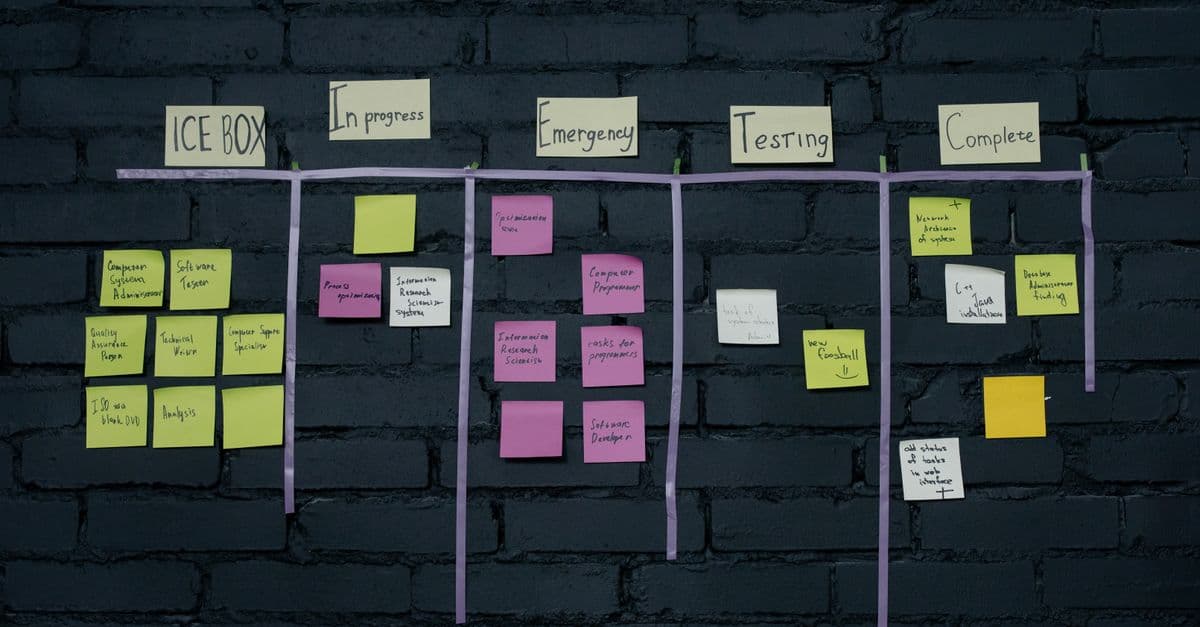
Photo: ThisIsEngineering / Pexels
To automate repetitive tasks without code, you connect the apps you already use so that one event, such as a new email or a submitted form, triggers the follow-up steps for you. The hard part is not the tool. It is choosing the right tasks, estimating what they are worth, and keeping the finished automation from quietly breaking. Below are the steps, with worked arithmetic and current plan limits for Zapier and Make.
Why this is worth doing: what the research says
Two numbers frame the opportunity, and both come with caveats. The McKinsey Global Institute's 2017 report A Future That Works, which analyzed more than 2,000 work activities across 800 occupations, concluded that about 49 percent of the activities people are paid to do have the potential to be automated with technology demonstrated at the time. It also found that fewer than 5 percent of occupations could be fully automated, while about 60 percent had at least 30 percent of their activities that could be. Fortune, which reported on the study, cautioned that the figures may be "too specific to take overly seriously."
The second number is a vendor survey. Asana, in its Anatomy of Work Index of more than 10,000 knowledge workers, reports that 60 percent of people's time at work goes to "work about work," meaning coordination, status updates, and chasing information rather than the skilled work they were hired for. Treat it as self-reported and sponsored, not as a measurement. Taken together they point the same way: a large share of office work is predictable, and predictable work is what software does well.
The lesson is not that half your job disappears. It is that inside nearly every job sits a layer of copying, forwarding, formatting, and notifying that a rule can handle. Automation tools exist to pull that layer out.
The core principle: audit first, then pick a tool
Most people start backward: they open an automation tool, stare at a blank canvas, and wonder what to build. The better order is to audit your own work first, because the tool should follow the task. For one week, keep a notepad beside you. Each time you copy something, paste something, fill in a form, forward an email, or send a routine status update, make a tick mark and a two-word label.
After a week you will usually have a list of 15 to 30 candidates. Many will turn out to be the same task wearing different clothes. If you find that you do not know the exact steps of a process, stop and map it before automating; our guide on how to map a business process before automating it explains how.
Step 1: Find tasks worth automating
The four filters
Ask four questions of every candidate.
1. Is it repetitive? Do you perform the same steps every time?
2. Is it rule-based? If someone wrote down the rules, could a new hire follow them without asking you anything?
3. Does it move data? Copy from here, paste there, reformat, send?
4. Does it happen often? Weekly at minimum, ideally daily.
A task that passes all four is a recipe. A recipe can be followed by a machine because every step is spelled out. A task that fails the second question is closer to cooking by taste: the cook adjusts for what they see, and a machine cannot.
| Good fit (recipes) | Poor fit (judgment calls) |
|---|---|
| Email arrives, data goes into a spreadsheet | Deciding whether to approve a refund |
| Form submitted, contact added to a CRM, welcome email sent | Writing a personal reply to an upset customer |
| Payment received, invoice generated and sent | Planning a one-off event |
| Every Monday, report pulled and emailed | Handling "whatever comes in today" |
| Lead submitted, team notified in Slack | Negotiating terms |
Poor fits are not off limits forever. Some can be split: a human decision in the middle, with automation before and after. Our piece on how approval workflows prevent automation mistakes shows how to build that pause in on purpose.
Step 2: Estimate the return before you build
Skipping this step is the most common mistake, and the arithmetic is simple. Value comes from the time you save, and cost comes from the build time and the tool plan.
Monthly value = minutes saved per run, divided by 60, times runs per month, times your hourly value.
Here is a worked example with illustrative numbers. Say you spend 2 minutes copying each of 20 emails per day into a spreadsheet, and you work 20 days a month.
- Runs per month: 20 per day times 20 days is 400.
- Time saved: 400 runs times 2 minutes is 800 minutes, or about 13.3 hours.
- Value at $50 an hour: about $667 per month.
Now the cost side, and here plan limits matter. According to Zapier's pricing page (dated October 20, 2026), its Professional plan starts at $19.99 per month billed annually, or $29.99 billed monthly, for 750 tasks. A task is counted when Zapier successfully completes an action; triggers and built-in tools such as Formatter and Filter do not count. A Zap that appends a row and posts to Slack uses two counted actions, so 400 runs consume 800 tasks, which would exceed the 750-task tier. The real price depends on the tier Zapier requires for your task count, so for this example assume a placeholder of $50 per month.
- Monthly net gain: $667 minus $50 in tool cost is $617.
- One-time build cost: 3 hours at $50 is $150.
- Payback period: $150 divided by $617 per month is about a quarter of a month, roughly a week.
These are illustrative numbers, and your real inputs will differ. What matters is the structure: value scales with frequency and time saved, while the cost is mostly a fixed build effort plus a plan fee that depends on volume. If you want to run your own numbers, our automation ROI calculator does the arithmetic for you.
The break-even rule from xkcd
Randall Munroe's xkcd comic #1205, "Is It Worth the Time?", is a useful sanity check. It assumes a task will be repeated for five years and tabulates how much time you can spend making it more efficient before the effort outweighs the savings. A few cells from the chart:
| How often you do it | Time shaved off each run | You can spend this long automating (5-year horizon) |
|---|---|---|
| 50 times a day | 5 seconds | 5 days |
| Daily | 1 minute | 1 day |
| Weekly | 5 minutes | 6 days |
| Monthly | 30 minutes | 1 day |
The chart's lesson is that tiny savings repeated often add up faster than most people expect, and large savings on rare tasks may not justify the build. A rough personal version: break-even build time equals time saved per run, times runs per year, times the number of years the task will exist.
A simple priority table
Use the same logic to rank your list. The hours below assume 250 working days and 50 working weeks a year.
| Frequency | Minutes per run | Hours saved per year | Priority |
|---|---|---|---|
| Daily | 10 | about 42 | Build now |
| Weekly | 30 | 25 | Build this month |
| Monthly | 60 | 12 | Build when convenient |
| Quarterly | 30 | 2 | Usually not worth it |
Ten automations that tend to pay off
The following ten are common patterns. Time savings depend on your own volume, so each entry gives you the pattern, the watch-out, and the key limit to check. For each one, plug your numbers into the formula above. Many of these need more than two steps, which matters because Zapier's Free plan is limited to two-step Zaps (one trigger and one action); multi-step Zaps start on the Professional plan.
1. Email to spreadsheet row
Pattern: A new email matching a filter arrives, a tool pulls out the sender, subject, and amount, and a row is added to Google Sheets.
Watch out for: Email formats drift. If a client changes their template, your extraction rule breaks silently. Our article on why spreadsheet automations break at scale covers the failure modes that show up once volume grows.
2. Contact form to CRM
Pattern: A form submission creates a contact in your CRM, assigns an owner, and notifies the team.
Watch out for: Duplicates. Add a "find record" step before "create record" so repeat submitters update an existing contact rather than creating a new one.
3. Publish once, post everywhere
Pattern: Write a post in one place and schedule it across social platforms.
Watch out for: Platforms have different formats and limits, and each connection needs its own permissions. Many schedulers do this natively, so an automation platform may not be necessary.
4. Payment to invoice
Pattern: A payment in Stripe triggers an invoice, an email to the customer, and a row in your accounting sheet.
Watch out for: Duplicate runs. If a trigger fires twice for the same payment, you could email two invoices. Our explainer on how idempotency keys make automation safe describes the standard defense.
5. Scheduled weekly report
Pattern: Every Friday afternoon, a scheduled trigger gathers numbers from your sources, formats them, and emails the team.
Watch out for: Reports built from unreliable data amplify the errors. Verify the inputs by hand for the first few weeks.
6. Lead alert
Pattern: A new CRM contact with a "website" source triggers a direct message to the assigned rep and a follow-up calendar event.
Why it matters: In a 2011 Harvard Business Review article, "The Short Life of Online Sales Leads," James Oldroyd, Kristina McElheran, and David Elkington reported that most companies are not responding nearly fast enough to online leads. Speed is the one advantage an automation reliably provides. (An often-repeated claim that a five-minute response raises conversion by 400 percent could not be traced to a primary source, so this article does not use it.)
7. Form responses saved to cloud storage
Pattern: New form or sheet entries are exported on a schedule to a cloud folder, with a confirmation message.
Watch out for: This is a convenience copy and not a backup strategy. Databases and critical systems need their native, tested backup tools, and an automation platform is the wrong place to rely on for disaster recovery.
8. Competitor and topic monitoring
Pattern: An RSS feed or alert for competitor mentions adds items to a table (such as Airtable) and posts a summary in Slack.
Watch out for: Noise. Notifications that fire too often get muted; see our article on why notification automation creates alert fatigue.
9. E-commerce order handling
Pattern: A new order checks inventory, emails a confirmation, updates a fulfillment sheet, and alerts the warehouse.
Watch out for: Branches. Real orders have exceptions (out of stock, partial shipments), which is where visual builders with conditional paths, like Make, are often easier to maintain than long linear chains.
10. Meeting notes to action items
Pattern: A transcription tool produces notes after each meeting, an AI model extracts action items, and tasks are created in your project tool.
Watch out for: AI extraction is probabilistic. Treat its output as a draft for a human to confirm, not as a source of truth. Compare tools in our roundup of AI meeting notes tools, and see AI automation with ChatGPT and Claude for patterns that keep a person in the loop.
Step 3: Build your first automation
The best first project is email to a spreadsheet row, because it is a trigger plus one action, so it fits Zapier's Free plan, and it teaches the entire workflow of any no-code tool. Plan on about 15 to 20 minutes the first time.
- Create the account and a new Zap. A Zap is Zapier's term for one automation: a trigger followed by one or more actions.
- Choose the trigger. Select Gmail and the trigger for new emails matching a search. Use a narrow search, such as one sender and one subject keyword, so you do not capture unrelated mail.
- Choose the action. Select Google Sheets and the action to create a spreadsheet row. Pick the sheet and map fields: sender to column A, subject to column B, and the date to column C.
- Test both steps. Zapier will fetch a real sample email and show you the row it would create. Check that every column holds what you expect.
- Turn it on. Name the Zap and publish it. From then on, each matching email adds a row.
Two cautions apply to this first build. First, an email body can contain personal or confidential information, so think about who can open the destination sheet before you map the body field. Second, free-plan limits are real: the Free plan includes 100 tasks per month, and one row created is one task. If you expect more than about 100 matching emails a month, a paid plan is likely.
What to do when a built-in action is missing
Both platforms let you reach beyond their built-in apps. Zapier's Webhooks action can call an API, and its Code step can run a short script. Per Zapier's help documentation, Code by Zapier supports JavaScript (Node.js 22) and Python 3.13, with a 512 MB memory limit on every plan. On the Free plan the standard runtime is 1 second and the rate limit is 10 requests every 60 seconds; Professional and Team plans allow 30 seconds. Those limits mean code steps suit short transformations, such as cleaning a phone number, and are a poor home for heavy processing. The mechanics of calling services are covered in the API primer listed under Related Articles below.
Choosing a tool: what the plans actually say
Pricing pages change often, so treat this table as a snapshot. Zapier's page was dated October 20, 2026; the Make and IFTTT pages showed no date, and the n8n row summarizes its license file.
| Tool | What it is best for | Facts from the vendor's own pages |
|---|---|---|
| Zapier | Beginners and the widest app coverage | Free: 100 tasks per month, two-step Zaps only. Professional: from $19.99 per month billed annually (750 tasks); multi-step Zaps start here |
| Make | Visual flows with branches and loops | Free plan: 1,000 credits per month; each module action uses credits, most using 1; error-handler and router modules do not count |
| IFTTT | Simple personal automations | Free: 2 Applets. Pro: $2.99 per month, 20 Applets. Pro+: $8.99 per month, unlimited Applets |
| n8n | Self-hosting and technical control | Sustainable Use License: you may use or modify the software for your own internal business purposes or non-commercial use; distribution is allowed only free of charge and non-commercially |
Note the n8n license wording. It is "source-available" in practice, not the standard open-source licenses that allow unrestricted commercial reuse, so check that your use fits before you self-host. Our n8n self-hosted guide covers setup, costs, and licensing in detail.
A reasonable rule: start with Zapier if you want the gentlest learning curve. Move to Make when your workflows need branching, or when the credit model suits your volume better. Choose n8n if you want to host your own and are comfortable with a server. For a side-by-side look, see the tool comparison under Related Articles below and our Make.com tutorial.
Permissions and data: the part people skip
Every automation is a set of standing permissions. When you connect Gmail, a CRM, and a spreadsheet, you are authorizing a third party to read from and write to those accounts, often indefinitely and without you watching. That is the trade-off that makes automation convenient, and it deserves a few minutes of thought.
Four habits reduce the risk without slowing you down:
- Connect with the narrowest account that works. If a shared mailbox can feed the automation, use it instead of a personal inbox full of unrelated messages.
- Limit what you pass along. Map only the fields the next step needs. A spreadsheet that holds names and amounts does not need the full email body.
- Decide who owns it. Automations built under one person's login can stop when that person leaves or their password changes. Note the owner and a backup in the Zap's name or description.
- Check retention settings. Run history can display the data that passed through each step, so confirm how long your platform keeps it and who on your team can see it.
If the data is regulated, such as health or financial records, get your organization's approval before connecting anything. The tool itself is rarely the issue. The question is whether your policies allow that data to flow through a third-party service at all.
A realistic first month
New builders tend to overreach in week one and abandon the effort by week three. A calmer schedule works better, and it matches the advice about building one automation at a time.
| Week | What to do | Success check |
|---|---|---|
| 1 | Keep the audit list. Rank by the priority table. Pick one task. | You can write the task's steps on one page |
| 2 | Estimate ROI. Build the email-to-sheet style automation. Test with real samples. | A test run produces the exact row or message you expected |
| 3 | Turn on error emails. Let it run. Check the run history twice. | No unexplained failures; you know what a normal run looks like |
| 4 | Measure the time saved against your estimate. Choose the next candidate. | Your estimate was within a factor of two, or you know why not |
The fourth-week comparison is the one most people skip, and it is what makes the next estimate better. If the real saving was far lower than predicted, the usual causes are that the task occurred less often than you remembered or that you still review each result by hand. Both are useful findings.
Step 4: Monitor and maintain
Automations are like a conveyor belt in a factory. When they work, nobody looks at them, and that is exactly when a jam goes unnoticed for weeks. A short habit of checking prevents most pain.
Zapier's troubleshooting guidance describes the tools. Every run is logged in Zap history under the Zap runs tab, where you can search by date, Zap, or app. When a Zap that was running has a problem, Zapier emails the account address with the Zap name, the error message, and a "Fix My Zap" button. Failed runs can be replayed after you fix the cause, and Zapier describes an Autoreplay feature that can retry automatically; check your plan for availability.
Common causes of breakage, per the same guidance, include:
- Expired connections. Authorizations can expire after a period such as a year, and a 401 Unauthorized error means you should reconnect the app.
- Mismatched data. A 400 Bad Request can occur when a value is mapped to the wrong type of field, such as text sent to a date field.
- Changed inputs. If a sender alters an email template, a rule that expected the old format fails.
- Volume spikes. Zapier may hold runs when more arrive than usual, to protect your task allowance.
Put a recurring 15-minute review in your calendar for the first month and then quarterly. Remove anything you no longer need, because dormant automations still hold permissions to your accounts. For deeper reliability patterns, read about why automation needs error queues and why webhooks fail silently and how to monitor them.
Mistakes that waste the most time
Automating a process you do not yet understand. Do the task by hand enough times to see the edge cases. Ten to twenty repetitions is a reasonable minimum, not a rule from research, and the exact number depends on how variable the task is.
Over-engineering. A three-step automation that saves 2 hours a week beats a 15-step workflow that takes a week to build and breaks when one app changes. Start with the minimum, run it, then extend.
No failure alert. The worst automation is the one that fails quietly for a fortnight. Turn on error emails before anything else.
Building ten at once. Build one, let it run for a week, then build the next. If something breaks, you will know which change caused it.
No manual fallback. Know how the task gets done if the automation stops, and who does it. Some tasks, such as a customer invoice, cannot simply be skipped.
Chaining automations
Once a few simple ones run reliably, you can connect them. A common chain looks like this: a form submission adds a record to a database, a status change to "Approved" triggers a second workflow, that workflow generates a document and emails it to the client, and a delay step sends a follow-up a week later if no reply has arrived.
Each link multiplies both the benefit and the debugging effort, and every extra step adds task usage on a metered plan. Keep chains short, name each step clearly, and document what the chain does. A diagram on one page is enough, and it is more useful than you might expect when you return to it six months later. Our guide to integrating tools without coding explains how apps pass data to each other, and the examples article under Related Articles shows real-world chains.
What this means
The case for automating repetitive tasks rests on arithmetic you can check: a small saving, repeated often, beats a large saving that happens rarely, and a plan limit can erase a thin margin faster than a slow afternoon of manual work can. Start with the audit, pick one frequent and rule-based task, estimate payback before you build, and turn on error notifications before you turn on anything else. The first automation is the least valuable one you will build. What it buys you is the habit of seeing a task as a trigger and a few rules, and that habit is where the later savings come from.
FAQ
Q: What is the simplest automation to start with? A: Email to a Google Sheets row. It has one trigger and one action, so it works on Zapier's Free plan, takes roughly 15 to 20 minutes, and teaches the build, test, and monitor cycle that every other automation follows.
Q: Can automations make mistakes? A: Yes. They do exactly what you configure, including when the input is unexpected. Test with a few real samples, add alerts for failures, and keep a human check on anything that sends money, emails customers, or deletes data.
Q: How many automations should I build? A: There is no fixed number. Build as many as pass your filters and pay back within a few months, and review them regularly. Each one adds something to maintain, and plan limits on tasks or credits are an effective cap in practice.
Q: What if the tool does not have a feature I need? A: Check for a webhook or API action first, then a code step. Zapier's Code by Zapier supports JavaScript and Python, but the Free plan's runtime is 1 second with a 10-requests-per-60-seconds rate limit, so heavier work needs a paid plan or a different tool.
Q: Is it safe to send business or personal data through an automation tool? A: It depends on the data and the vendor. Limit what you pass along, restrict who can open the destination, review the connected accounts regularly, and read the vendor's security and data-handling documentation. Regulated data may need approval from your organization.
Q: Is the free plan enough? A: For a first project, often yes. Zapier's Free plan has 100 tasks per month and two-step Zaps, Make's free plan has 1,000 credits per month, and IFTTT's free tier has 2 Applets. Multi-step workflows and higher volume usually require a paid plan.
Sources
- McKinsey Global Institute. A Future That Works: Automation, Employment, and Productivity, January 2017, as reported by Fortune.
- Asana. Why work about work is bad (Anatomy of Work Index, vendor survey).
- Oldroyd JB, McElheran K, Elkington D. The Short Life of Online Sales Leads. Harvard Business Review, 2011. BYU ScholarsArchive record.
- Munroe R. xkcd 1205: Is It Worth the Time?
- Zapier. Pricing (page dated October 20, 2026).
- Zapier. Using Code by Zapier.
- Zapier. How to troubleshoot Zaps.
- Make. Pricing.
- IFTTT. Plans.
- n8n. License file (Sustainable Use License).
Prices, limits, and features were checked on October 20, 2026 and change frequently; confirm on the vendor's page before you buy.
Related Articles
Follow new articles
Add SciHub101 to your feed reader to see new science and technology stories.
About the Author
SciHub101 is an independent science and technology publication founded and edited by Buğra Sözeri, a software engineer and app developer based in Türkiye. AI tools assist with drafting and research. Source documentation in the existing archive is uneven, and articles are being reviewed and corrected. The Editorial Team byline identifies editorial responsibility; it does not certify specialist or independent human review. Where we compare products, anything built by our own team is labelled as such — see the editorial guidelines and About page for how corrections and disclosures work.
Related Articles

What Is No-Code Automation? A Beginner's Guide
No-code automation explained: how triggers, actions, and filters work, what Zapier, Make, n8n, and IFTTT cost, and which tasks to automate first.

Workflow Automation Examples — Real-World Use Cases
12 documented workflow automation examples for leads, payments, orders, support and ops, tied to official platform docs, with the failure modes to plan for.
Airtable Automation Tutorial — Build Workflows Fast
Airtable automation tutorial: triggers, actions, scripts, webhooks, and current run limits by plan, plus patterns that hold up. Build reliable no-code workflows.
How to Integrate Tools Without Coding — No-Code Guide
Connect your favorite apps: Gmail, Slack, Airtable, Salesforce. No API knowledge required. Zapier, Make, and native integrations compared.

Make.com Automation Tutorial — Complex Workflows Guide
Make tutorial: build workflows with conditions, loops, error handling. More powerful than Zapier, cheaper, better for complex logic.
Zapier Step-by-Step Guide — First Automation in 15 Min
Zapier tutorial for beginners: build a Gmail to Slack alert on the free plan, learn tasks, filters, delays, and limits, and know when to pick another tool.