How to Choose the Right Laptop in 2026: A Practical Buyer's Guide
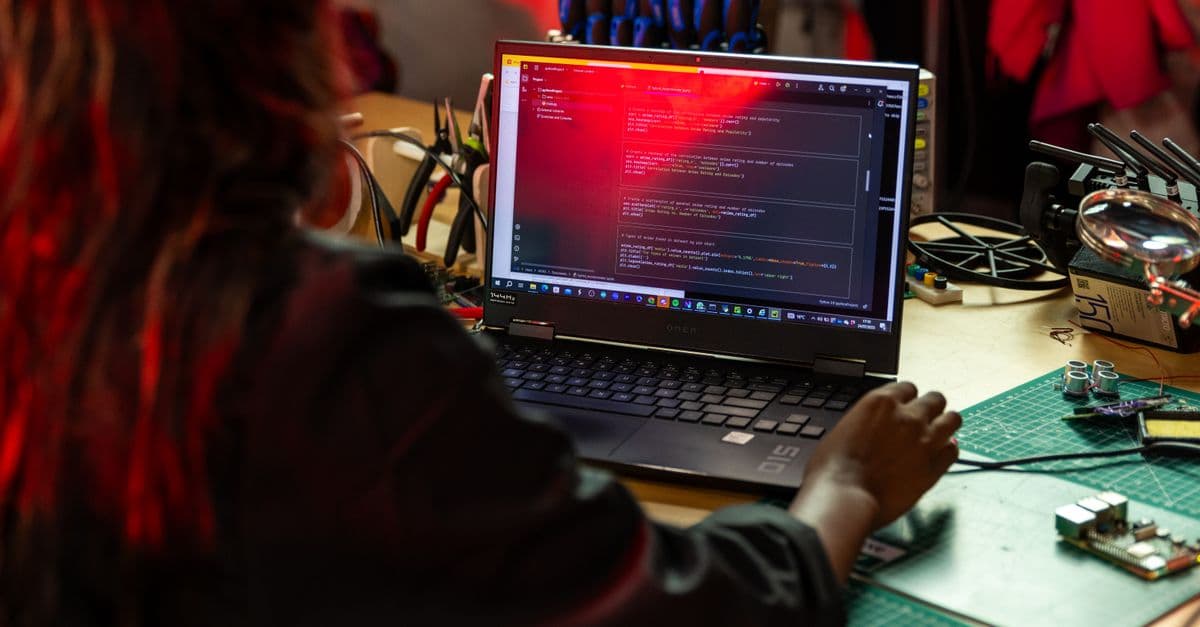
Photo: ThisIsEngineering / Pexels
Every year, millions of people buy the wrong laptop. A student majoring in literature purchases a gaming laptop with a 4090 graphics card and regrets it when the 6-pound machine destroys her shoulders commuting to campus. A software developer buys a budget laptop with a low-end processor and spends the next three years waiting 30 seconds for code to compile, losing an hour per day to cumulative delay. A video creator buys a laptop optimized for gaming (high GPU, low RAM) without understanding that rendering requires both sustained CPU power and memory, creating a bottleneck that makes her workflow agonizing.
The problem is that laptop specifications are confusing and marketed misleadingly. A laptop with a "10-core processor" sounds impressive but may be slower than a "6-core processor" if the 10-core design trades clock speed for core count and your software does not parallelize well. Marketing emphasizes raw numbers (teraflops, cores, gigahertz) that do not translate to real-world performance in your specific work.
The solution is to buy based on use case, not specifications. A $600 laptop that perfectly matches your needs will serve you better than a $2,500 laptop that is over-specified for your work. This guide explains what each component does, what tradeoffs you are making, and how to match hardware to your actual workload.
The Core Components: What Each Does
CPU (Processor): the core computational engine. Everything on your laptop runs on the CPU. Single-threaded performance (how fast the CPU can execute one task) matters more than core count for most tasks. A 6-core CPU with high clock speed (5 GHz) often outperforms an 8-core CPU with lower clock speed (3 GHz) for tasks that do not parallelize well (web browsing, video playback, writing). Core count matters when you are parallelizing work: compiling code, rendering video, or training machine learning models. Modern CPUs (Apple Silicon M3-M4, Intel Core Ultra, AMD Ryzen 8000) can handle both; older designs trade single-threaded speed for core count and regret it.
GPU (Graphics Processor): specialized processor optimized for graphics rendering and parallel computation. Integrated GPUs (built into the CPU, sharing system RAM) are adequate for everyday tasks and light content creation. Discrete GPUs (separate chips with dedicated VRAM) are necessary for serious gaming, video editing, 3D rendering, and machine learning. The tradeoff: discrete GPUs increase cost ($300-$800), heat, and power consumption, reducing battery life by 30-50 percent.
RAM (Memory): ultra-fast temporary storage for running programs. More RAM lets you multitask without slowdown and handle large datasets without swapping to disk. 8GB is bare minimum; 16GB is comfortable for most professionals; 32GB is necessary for video editing, machine learning, or heavy multitasking (50+ browser tabs, docker containers, VMs); 64GB+ is niche (professional 3D rendering, data science, server simulation). The tradeoff: RAM increases cost ($100 per 8GB) and power consumption. Diminishing returns start above 32GB for most use cases.
Storage (SSD): permanent fast storage. Size and speed matter. 256GB is inadequate (Windows/Mac + one large app exhausts it). 512GB is the practical minimum; 1TB is ideal. Speed: NVMe Gen 4 (7,000 MB/s) is standard; Gen 5 (15,000 MB/s) is faster but you will not notice the difference in real-world tasks. The tradeoff: larger SSDs cost more ($100-$300 per 500GB). External storage can supplement; a $50 external SSD is cheaper than internal storage upgrade.
Display: your interface to the laptop. Specs that matter: resolution (pixel density and working space), refresh rate (smooth scrolling), color accuracy (for design/photo work), brightness (outdoor visibility). A 1080p 13-inch screen has 165 pixels per inch; a 1440p 13-inch screen has 220 ppi, noticeably sharper. A 60 Hz display (refreshes 60 times per second) is adequate for productivity; a 120 Hz display feels smoother but drains battery. Color accuracy (sRGB, DCI-P3) matters only for design; brightness (nits) matters if you work outdoors. The tradeoff: higher-quality displays cost more and drain battery slightly faster.
Battery: runtime per charge. 8-10 hours is typical; 10-15 hours is excellent; below 8 hours is poor for portable work. Actual battery life depends on CPU, GPU, display brightness, and workload; marketing claims are optimistic. The tradeoff: larger batteries increase weight and cost.
The Real-World Tradeoff: Performance vs. Portability vs. Longevity
A laptop is a tradeoff between performance (speed), portability (weight and size), and longevity (how long it remains viable). You cannot max out all three.
High performance + Portable: expensive, hotter, shorter battery. Example: 13-inch MacBook Pro M4 Max, $2,000. Delivers desktop-level performance in a 3-pound package; battery drains under load.
High performance + Affordable: heavy, large, worse battery. Example: 16-inch RTX 4090 gaming laptop, $1,500. Desktop-grade gaming GPU in 7-pound package; 4-hour battery.
Portable + Affordable: limited performance, older technology, shorter lifespan. Example: 13-inch budget Chromebook, $300. 2.5 pounds; 10-hour battery; cannot compile code or edit video.
Balanced: moderate performance, moderate weight, moderate price, good longevity. Example: 14-inch MacBook Air M3, $1,200, or 14-inch Dell XPS 14, $1,100. 3.3 pounds, 8-hour battery, handles most tasks, current-gen CPU/GPU, support for 5+ years.
The mistake is chasing all three. Choose the two that matter most for your use case.
Use-Case Tiers: Matching Hardware to Workload
| Use Case | Typical Tasks | Recommended CPU | GPU | RAM | Storage | Battery | Budget |
|---|---|---|---|---|---|---|---|
| Student | Essays, note-taking, video calls, light coding | Mid-range (M3, Core Ultra 5) | Integrated | 8-12GB | 512GB | 10+ hours | $600-$1,000 |
| Creator (video, photo, design) | Video editing, photo processing, graphics design | High-end (M4 Pro, Core Ultra 7) | Integrated or discrete | 16-32GB | 1TB+ | 8-10 hours | $1,200-$1,800 |
| Developer | Coding, compiling, version control, VMs, containers | High-end (M4 Pro/Max, Core Ultra 7/9) | Integrated | 16-32GB | 512GB+ | 8+ hours | $1,500-$2,200 |
| Gamer | Gaming, high FPS, AAA titles | High-end CPU + discrete GPU | High-end discrete (4070/4080/4090 equivalent) | 16-32GB | 1TB+ | 4-6 hours | $1,800-$3,000+ |
Student tier ($600-$1,000):
- Use case: essays, research, note-taking, occasional light coding, web browsing.
- Hardware focus: CPU efficiency and battery over raw power. Integrated GPU is sufficient.
- Don't waste money on: discrete GPU, high core count, 32GB RAM.
- Recommended: MacBook Air M3 ($1,000), Dell XPS 13 ($900), Lenovo ThinkPad X1 Carbon ($1,000).
- Avoid: gaming laptops, workstation laptops, ultra-portable (heavy to carry, fragile).
Creator tier ($1,200-$1,800):
- Use case: video editing, photo retouching, 3D design, podcast editing.
- Hardware focus: GPU (for rendering and effects) and RAM (for large files and multiple apps).
- Specific needs: fast storage (1TB+ for footage libraries), good display (accurate color, high brightness).
- Don't waste money on: ultra-high core count (video editing does not parallelize beyond 8-12 cores well).
- Recommended: MacBook Pro 14 M4 Pro ($1,600), Dell XPS 17 with RTX 4070 ($1,700), Lenovo ThinkBook 16 P ($1,400).
- Avoid: budget gaming laptops (GPU optimized for gaming, not rendering), undersized storage (video files are huge).
Developer tier ($1,500-$2,200):
- Use case: software development, full-stack coding, compiling, running VMs/containers, occasional light design.
- Hardware focus: CPU (fast compilation and execution) and RAM (for Docker, Kubernetes, simultaneous VMs).
- Specific needs: SSD speed (fast boot and file I/O), keyboard quality (you will type 8 hours per day), good thermals (sustained CPU load).
- Don't waste money on: discrete GPU (most dev work does not benefit), gaming features (RGB, high refresh rate).
- Recommended: MacBook Pro 14 M4 Pro ($1,600), Dell XPS 14 ($1,400), Lenovo ThinkPad X1 Extreme ($1,800).
- Avoid: budget laptops (CPU too slow for compilation), gaming laptops (bloatware, poor keyboard).
Gamer tier ($1,800-$3,000+):
- Use case: gaming, high FPS (100+ fps), AAA titles, VR.
- Hardware focus: discrete GPU (4070 or higher), CPU with good single-threaded performance, high refresh rate display (120+ Hz).
- Specific needs: cooling (gaming load is thermally intensive), power delivery (high wattage power adapter), upgradeable storage/RAM.
- Don't waste money on: extremely high core count (gaming does not scale beyond 8-10 cores), overkill GPU for your monitor resolution.
- Recommended: ASUS ROG Zephyrus G16 ($2,000), MSI Raider Pro ($1,900), Alienware m18 ($2,200).
- Avoid: designer laptops prioritizing aesthetics over thermals, undersized power adapters.
Specific Hardware Recommendations by Tier (2026)
Best value for students: MacBook Air M3 (13-inch, $1,000) or Dell XPS 13 (14-inch, $900). Both offer 8-hour+ battery, fast CPU, and sufficient RAM for academic work. If budget is sub-$700, consider Asus Chromebook or Dell Chromebook (note: Chromebooks run Chrome OS; code must be cloud-based or Linux containers).
Best value for creators: MacBook Pro 14 M4 Pro ($1,600) or Dell XPS 17 with RTX 4070 ($1,700). Both offer 16-core GPU or discrete GPU, 32GB RAM, and 1TB storage standard. The MacBook Pro handles video editing and photo work well; the Dell has more RAM and larger screen.
Best value for developers: MacBook Pro 14 M4 Pro ($1,600) or Lenovo ThinkPad X1 Carbon ($1,400). Both have excellent keyboards, strong CPUs, 32GB RAM options, and good thermals. MacBook is faster; ThinkPad is cheaper. If you need Linux native (not just WSL), ThinkPad is easier to dual-boot.
Best value for gamers: ASUS ROG Zephyrus G16 ($2,000) with RTX 4070 or MSI Raider Pro ($1,900) with RTX 4080. Both offer 1440p 240 Hz displays (buttery smooth gaming), Intel Core i9, 32GB RAM, and solid thermals. Expect 4-6 hour battery.
Mistakes to Avoid
1. Buying by specs, not by use case.
Wrong: "I want 32GB RAM and an RTX 4090 because they are the best." Right: "I do video editing, so I need 32GB RAM and a good GPU (4070 is enough); RTX 4090 is overkill."
Specification obsession is the most common laptop-buying trap. A consumer reads marketing material emphasizing "12-core processor" and "RTX 4090 GPU" and assumes more cores and higher GPU tier equals better performance. In reality, a quad-core M4 processor often outperforms a 12-core Intel processor for single-threaded tasks because of clock speed and architectural efficiency. An RTX 4070 GPU is sufficient for 4K video editing; an RTX 4090 adds $300 cost and 50 percent more heat for a 5-10 percent performance gain that most users will never utilize. The correct approach: identify your specific workload (coding, video editing, gaming), research what hardware is required for that workload, and buy at that tier, not one tier higher.
2. Confusing core count with speed.
Wrong: "A 12-core AMD processor is faster than an 8-core Intel processor." Right: "Core count is one factor; clock speed, cache, and architecture matter equally. Benchmark real workloads, not spec sheets."
Modern CPU marketing conflates core count with performance. A processor is fast if it can execute single-threaded tasks quickly (dependent on clock speed, cache, and instruction efficiency) and parallelize multi-threaded tasks across cores. A 6-core CPU at 5.2 GHz can outperform an 8-core CPU at 3.8 GHz if the workload does not parallelize well or the cache is smaller. Web browsing, video playback, and word processing do not parallelize; they depend on single-threaded speed. Video rendering, code compilation, and machine learning training do parallelize; they benefit from core count. Always check benchmark results for your specific software, not raw core counts.
3. Ignoring keyboard and trackpad.
Wrong: "I type emails occasionally; keyboard does not matter." Right: "You interact with the input devices for 8+ hours per day. A bad keyboard causes RSI and frustration."
Most laptop buyers test a machine for 5 minutes in a store and focus on the CPU or display. They miss that they will spend 8+ hours daily typing and moving the trackpad. A bad keyboard (shallow travel, mushy feedback, poor key spacing) causes repetitive strain injury (RSI) and makes coding or writing exhausting. A bad trackpad (imprecise, sluggish, requires excessive force) forces you to carry a mouse everywhere, defeating the "portable laptop" purpose. ThinkPad X1 and MacBook keyboards are industry benchmarks; test any laptop for 15+ minutes before buying. Type a paragraph; perform trackpad gestures. If they feel wrong, walk away.
4. Underestimating storage needs.
Wrong: "256GB is enough; I will use cloud storage." Right: "Large projects (video files, code repos, virtual machines) need local storage for speed. Cloud backups and 256GB local = constantly full and frustrated."
A 256GB SSD is inadequate for any professional work. macOS or Windows occupies 40-60GB; a single large application (video editor, game, code IDE with dependencies) occupies 20-30GB; user files and projects occupy the remainder. By 150GB of usage, your laptop is at 60 percent full and slow (SSDs perform worse at high utilization). Video projects alone require 100+ GB per project. A 256GB drive leaves you constantly deleting files or migrating to external storage, destroying workflow. 512GB minimum; 1TB if your work involves video, large datasets, or multiple VMs. External SSD is a supplement, not a replacement; external SSDs are 30-50 percent slower than internal NVMe storage.
5. Overbuying for gaming when you do light gaming.
Wrong: "I play some games, so I should get a gaming laptop with RTX 4090." Right: "Most games run fine at 1080p 60 Hz on integrated GPU or RTX 4060. Only buy high-end GPU if you are a serious gamer (esports titles at 240+ fps or AAA at ultra settings)."
Gaming laptops are expensive and loud. An RTX 4090 gaming laptop costs $2,500+, weighs 7-8 pounds, and sounds like a leaf blower under load. If you play games casually (10-15 hours per month, do not care about ultra-high frame rates), a mid-range laptop with integrated GPU or RTX 4060 plays all modern games at 1080p 60 fps comfortably. Reserve gaming laptops for serious gamers who prioritize 240+ fps in esports titles or ultra settings in AAA games. If that is not you, save $1,000 by buying a balanced machine.
6. Ignoring thermals and noise.
Wrong: "Processor speed is the only thing that matters." Right: "A fast processor that throttles (reduces speed due to heat) or fans that sound like a helicopter is worse than a slightly slower processor that stays cool and quiet."
A laptop's thermal design directly impacts usability. A processor that overheats and throttles (reduces clock speed to cool down) becomes slower under sustained load than a slightly lower-clocked processor that stays cool. A laptop with loud fans is unusable in a quiet office or library. Gaming laptops and high-end workstations generate significant heat; if cooling is poor (small heatsink, poor airflow, inadequate thermal paste), performance is crippled and longevity is reduced (heat degrades components faster). Research thermal benchmarks on NotebookCheck or similar before buying; look for reviews mentioning thermals, noise, and fan behavior under sustained load.
7. Buying a 17-inch laptop for portability.
Wrong: "I need a 17-inch laptop to see more content; I will carry it around campus." Right: "17-inch laptops are 7-8 pounds and hard to carry. If portability matters, buy 13-14 inches. If you work at a desk, external monitor is cheaper than an oversized laptop."
Many students buy 17-inch laptops thinking larger screens improve productivity. They regret it after carrying a 7-pound machine in a backpack for a semester. A 13-inch or 14-inch laptop is substantially lighter (3-4 pounds) and still offers adequate working space. If your actual need is screen real estate and you work mostly at a desk, buy a 13-inch laptop and add a cheap external monitor ($100-$200) rather than compromising portability with a 17-inch machine. Portability is severely undervalued in laptop purchases; a laptop you carry is vastly more useful than one too heavy to move.
Frequently Asked Questions
Q: Should I buy a Mac or Windows laptop?
A: Choose based on your software ecosystem and professional requirements. Macs are best for video/photo editing, music production, and design (Final Cut Pro, Logic, Affinity); Windows is best for gaming, CAD, and enterprise software. Developers can use either (most development is cross-platform now). Developer tiers: Mac (MacBook Pro M-series), Windows (ThinkPad X1 Carbon, Dell XPS 15).
Q: Is a Chromebook suitable for development?
A: Chromebooks run Chrome OS; native code development requires Linux via containers or dual-boot. If you need Linux native, Chromebook adds complexity. Chromebooks are great for students and casual users; developers should stick to Mac or Windows with native dev environments.
Q: How often should I upgrade my laptop?
A: Hardware lasts 4-5 years before relevance decline. A 2021 MacBook Air is still fast in 2026; a 2021 budget Windows laptop is slow. Modern CPUs (M3-M4, Core Ultra) will be relevant for 5+ years. Upgrade when: (1) your workload changed (more video editing, coding complexity), (2) battery no longer lasts a half day, (3) CPU becomes noticeably slow (16+ second compiles, visible lag). Do not upgrade just because a new model is released.
Q: Is 16GB RAM enough for video editing in 2026?
A: For 1080p video, yes. For 4K video, 32GB is safer. For heavy effects and motion graphics, 32GB is recommended. If your workflow is simple (basic cuts and color grading), 16GB works. Test with a 30-minute 4K timeline; if the editor lags, you need 32GB.
Q: Is MacBook M-series worth the premium over Windows?
A: Yes, for longevity and user experience. A MacBook Air M3 ($1,000) outperforms a $700 Windows laptop and stays usable for 6+ years. A MacBook Pro outperforms Windows laptops 20 percent faster at the same price. But if you need specific Windows software (certain corporate tools, games), the premium is wasted. Choose based on software needs, not brand loyalty.
Q: Should I buy the latest generation or last year's model?
A: Buy the latest generation if it was released within the last 4 months (you get 5+ years of support). If the latest was released more than a year ago, last year's model is often cheaper and just as good. Example (2026): MacBook Pro M4 (2026 release) is worth buying; MacBook Pro M3 (2024 release) is still excellent and discounted 15-20 percent.
Read Next
Extend your laptop's lifespan and optimize its performance:
- How to Optimize Your iPhone Battery Life in 2026 — understand battery technology and longevity.
- How the Internet Actually Works — understand the cloud services your laptop connects to.
- How to Protect Your Online Privacy in 2026 — secure your laptop and data.
Source: AnandTech (2024), CPU Benchmarks: Single-Threaded vs. Multi-Threaded Performance Comparison — technical analysis of CPU performance across workloads and architectures.
Source: TechPowerUp (2024), GPU Database and Benchmarks — comprehensive GPU performance data for gaming, rendering, and compute workloads.
Source: LaptopMag (2024), Best Laptops by Use Case — hands-on reviews and recommendations for student, creator, developer, and gamer use cases.
Source: NotebookCheck (2024), Thermal Analysis: Gaming vs. Creator Laptops — thermal performance testing and fan noise measurements across laptop categories.
Source: JayzTwoCents (2024), YouTube series Laptop Buying Guide 2026 — practical advice on CPU/GPU tradeoffs and real-world performance testing.
Source: Linus Tech Tips (2024), Laptop CPU Comparison Framework — methodology for evaluating processors across different architectures (Intel, AMD, Apple Silicon).
Source: DisplayMate (2024), Laptop Display Technology Explained — analysis of display types, refresh rates, color accuracy, and battery impact.
Source: UserBenchmark (2024), Real-World Workload Performance — crowdsourced performance data from millions of users across daily tasks.
Source: Apple Technical Specifications (2024), MacBook Pro Performance Metrics — official specifications and thermal design power for M-series chips.
Source: Intel Core Ultra Whitepaper (2024), Architecture and Performance Analysis — technical deep-dive on Intel's new architecture and single-threaded performance improvements.
Source: Laptop Repairs and Longevity Study (2023), Component Failure Rates — statistical analysis of which laptop components fail most and when, informing durability assessments.
Source: Consumer Reports (2024), Laptop Reliability and Owner Satisfaction — survey of 10,000+ laptop owners on long-term reliability and value.
Follow new articles
Add SciHub101 to your feed reader to see new science and technology stories.
About the Author
SciHub101 is an independent science and technology publication founded and edited by Buğra Sözeri, a software engineer and app developer based in Türkiye. AI tools assist with drafting and research. Source documentation in the existing archive is uneven, and articles are being reviewed and corrected. The Editorial Team byline identifies editorial responsibility; it does not certify specialist or independent human review. Where we compare products, anything built by our own team is labelled as such — see the editorial guidelines and About page for how corrections and disclosures work.
Related Articles

How to Create a YouTube Shorts Strategy That Works: The Algorithm, Hooks, and Posting Cadence
YouTube Shorts uses a recommendation algorithm that prioritizes watch time, retention, and engagement signals — not subscriber count or video length. The first 3 seconds determine 50–60% of completion rates. Posting frequency (2–3 per week) matters more than batch uploading. Repurposing long-form content works only if edited for mobile vertical format and native captions. Most creators fail because they treat Shorts as teasers for long-form rather than a self-contained format. Realistic growth: 0–10k followers in 6–12 months with consistent posting and adequate hooks. No viral shortcuts exist.

How to Build Your First Website With No Coding Experience
Building a website in 2026 requires zero coding knowledge for most use cases — but the choices you make in the first hour determine whether you're fighting the tool for years or growing smoothly. Here is what the options actually are, what they cost, and the path most first-timers should take.
How a CPU Works — Inside Your Computer's Brain
How a CPU works — fetch-decode-execute, cores, cache, clock speed, x86 vs ARM vs RISC-V, Moore's Law, and the Apple Silicon revolution explained.
How AI Designs Its Own Chips: Hardware-Aware Neural Architecture Search
AI now designs the chips that run AI—neural architecture search and ML-driven chip floorplanning are rewriting semiconductor R&D.

How to Build a Gaming PC on a Budget in 2026: Component Guide and $600–$1,200 Configurations
Building a gaming PC for under $1,000 in 2026 is not only possible—it's the most cost-effective path to 1080p gaming at 60+ fps. A mid-range $900 build using a Ryzen 5 7500F and RTX 4060 outperforms equivalent prebuilts by 15 to 20 percent per dollar spent. The difference between a $600 entry-level machine and a $1,200 high-refresh setup reveals where to allocate budget for real performance gains, which components to buy used, and which to avoid. Building your own PC saves $150 to $300 on labor and bloatware, gives you full control over component quality, and teaches you maintenance skills that extend your machine's lifespan by years.

How to Choose the Best Gaming Laptop in 2026: GPU, CPU, Display, and Performance Trade-Offs
Gaming laptops in 2026 span a 10x performance range and a 4x price range, from entry-level units at 1440p 60 fps to flagship machines pushing 4K 144 fps with ray-traced visuals. GPU choice determines 60 percent of frame rate; CPU matters for physics and draw calls. Display refresh rate and panel type (IPS vs VA vs Mini-LED) shape responsiveness and visual quality perception. Thermals and power delivery define sustained performance; a 150W GPU can thermal-throttle if cooling is inadequate. Understanding the interplay between these components — and the trade-offs between desktop and laptop — allows you to select a machine that matches your actual playstyle and budget without overpaying for specs you won't use.